Use the resident preferences page
Understand how a resident uses a secure preference link and what staff should verify afterward.
What you will finish
A resident updates available communication preferences through their own secure link, and staff can verify the resulting status.
Before you begin
Preference links are intended for the specific recipient. Do not forward, publish, or reuse another person's link.
Have these ready
- The original preference link sent to the resident
- Access to the matching email or message
Stop and ask for help if
- The page shows another person's identifying details.
- The link came from an unknown source or asks for a password or payment information.
Step-by-step instructions
- 1
Open the original link
Open the preference link from the message addressed to you. Check that the browser shows the expected MercuryReach page.
What you should see: A preference page opens without asking for a MercuryReach staff password.
- 2
Review the available choices
Read Language, How should we contact you?, Keep texting turned on, and the quiet-hours acknowledgement when it appears.
What you should see: You understand what each choice changes.
- 3
Make the requested choices
Change only your own preferences and select Save my preferences once.
What you should see: A confirmation explains that your preferences were saved.
- 4
Staff verification
Authorized staff can open the matching contact and verify the new channel states without sending a test.
What you should see: The contact record reflects the resident's submitted request.
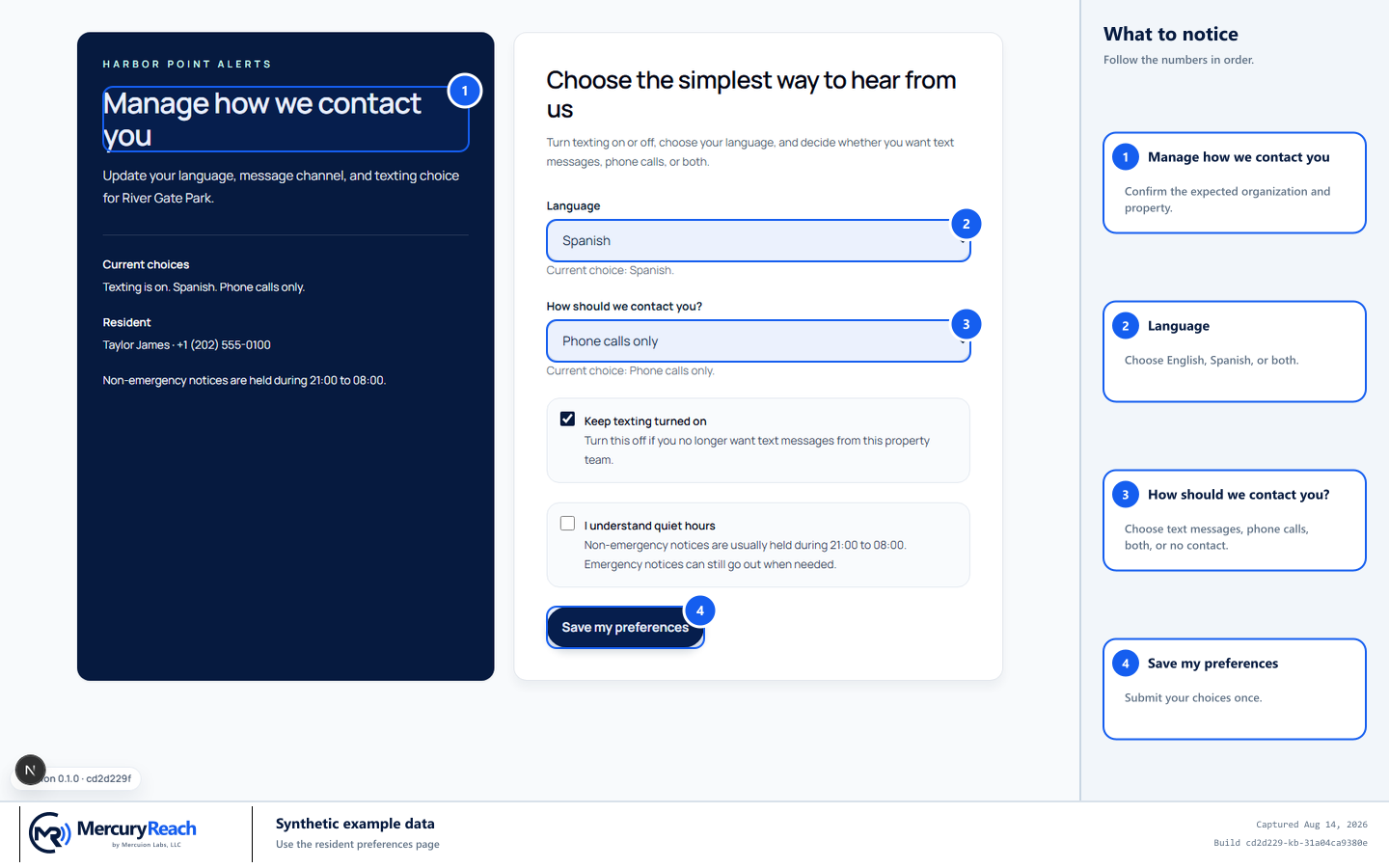
Use only the preference link addressed to you and save your own choices once.
- 1
Manage how we contact you: Confirm the expected organization and property.
- 2
Language: Choose English, Spanish, or both.
- 3
How should we contact you?: Choose text messages, phone calls, both, or no contact.
- 4
Save my preferences: Submit your choices once.
MercuryReach training image · Synthetic example data · Captured 2026-08-20
Check your work
- The preference page shows a success confirmation.
- The matching contact's channel state updates.
- The link was not shared or stored in a public place.
If something does not look right
The link is invalid or expired.
Do not try another person's link. Contact the organization using its normal support contact and request a new preference link.
The page shows the wrong person.
Close it immediately and report the issue without taking a screenshot of the private information.