Verify the correct workspace before you work
Confirm the organization shown in MercuryReach before you view, change, export, or send anything.
What you will finish
You work only in the organization shown for your account and stop safely if it is not the one you expected.
Before you begin
A customer account belongs to one MercuryReach workspace. Customer accounts do not have a workspace switcher. Treat the workspace name like the address on an envelope.
Have these ready
- The name of the organization you expect to use
Stop and ask for help if
- The workspace name is not the organization you expected.
- You see records that appear to belong to another organization.
Step-by-step instructions
- 1
Open the Dashboard
Select Dashboard in the left menu.
What you should see: The Operations dashboard page opens.
- 2
Read the workspace name
At the top of the left menu, read the organization name before opening contacts, exporting data, or sending a notice.
What you should see: The name matches the organization you expected.
- 3
Stop if the name is wrong
Do not open or change any records. Open Account and view, select Sign Out, and contact your Owner Admin or Help Desk using an approved method.
What you should see: You return to the sign-in page without working in the unexpected workspace.
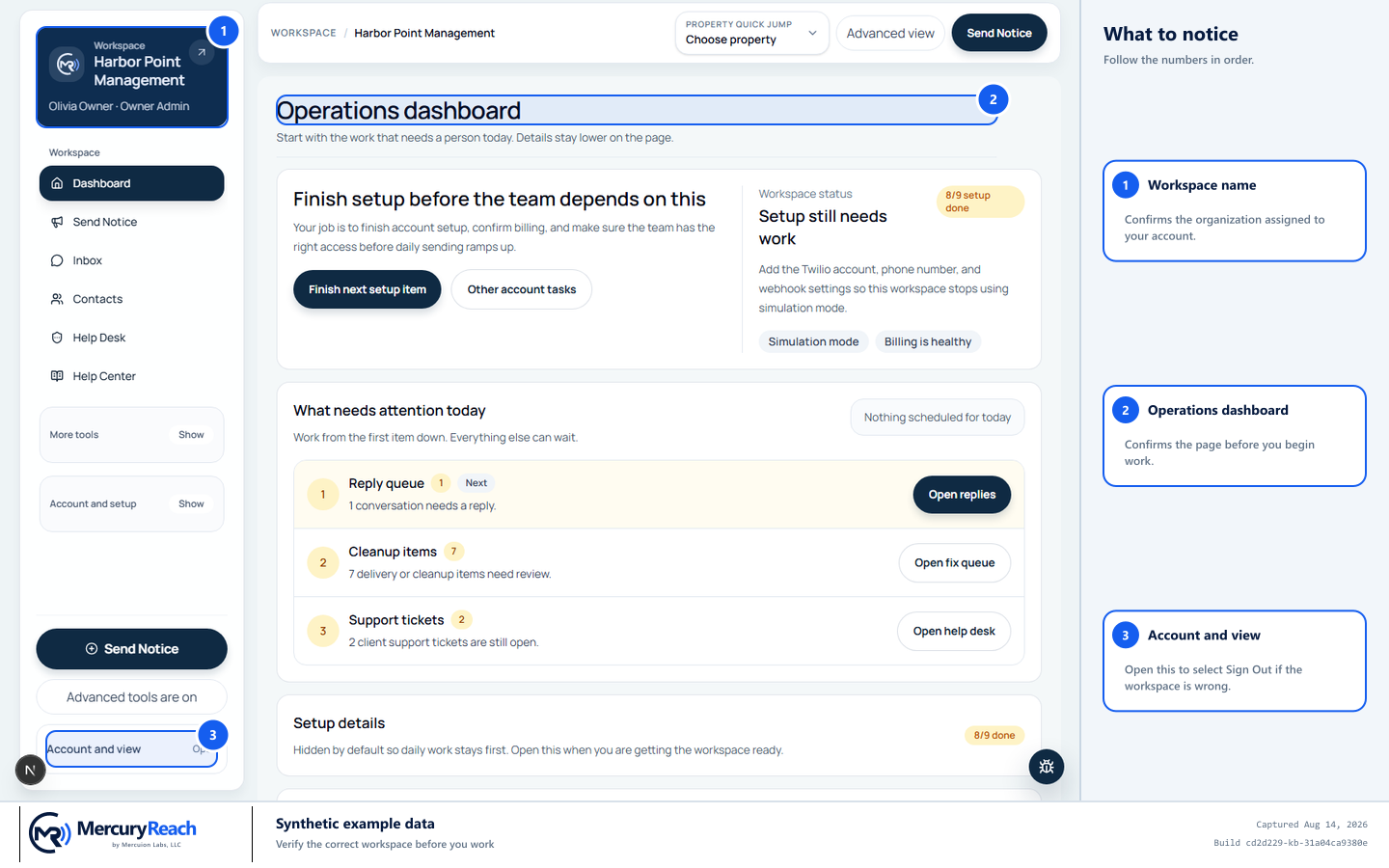
Customer accounts use one workspace. Verify its name before touching data and sign out if it is unexpected.
- 1
Workspace name: Confirms the organization assigned to your account.
- 2
Operations dashboard: Confirms the page before you begin work.
- 3
Account and view: Open this to select Sign Out if the workspace is wrong.
MercuryReach training image · Synthetic example data · Captured 2026-08-20
Check your work
- The expected workspace name is visible in the left menu.
- The page heading says Operations dashboard.
- You stopped and signed out if either item was unexpected.
If something does not look right
The organization name is wrong.
Sign out without opening records. Ask your Owner Admin to confirm which personal account and workspace you should use.
You need access to a different organization.
Do not borrow another person's account. Ask the appropriate Owner Admin or Help Desk for the approved access path.