Find your way around MercuryReach
Learn what the main menu, workspace name, page actions, and Account and view control do.
What you will finish
You can move between pages, confirm your workspace, and return to the Dashboard without losing your place.
Before you begin
The left menu contains the areas your current permissions and add-ons allow you to use. A missing item can reflect your role, an approved custom role policy, property scope, or an inactive add-on.
Have these ready
- You are signed in
- You can see the MercuryReach Dashboard
Stop and ask for help if
- The organization name is wrong; sign out and tell your Owner/Admin before opening any resident records.
Step-by-step instructions
- 1
Confirm the workspace
Check the organization name near the top of the menu before viewing or changing data.
What you should see: The correct organization is named.
- 2
Use the main menu
Select an item that is visible to you, such as Contacts or Help Center. On a phone, select Open navigation menu first.
What you should see: The selected page opens and its menu item is highlighted.
- 3
Read the page heading
Use the large heading and short description to confirm what the page controls.
What you should see: You know which area you are working in before selecting an action.
- 4
Return home
Select Dashboard in the main menu.
What you should see: The Dashboard overview appears.
- 5
Open account actions
Open Account and view at the bottom of the left menu to find Your profile, Password and security, and Sign Out.
What you should see: Account and view opens without leaving the current page.
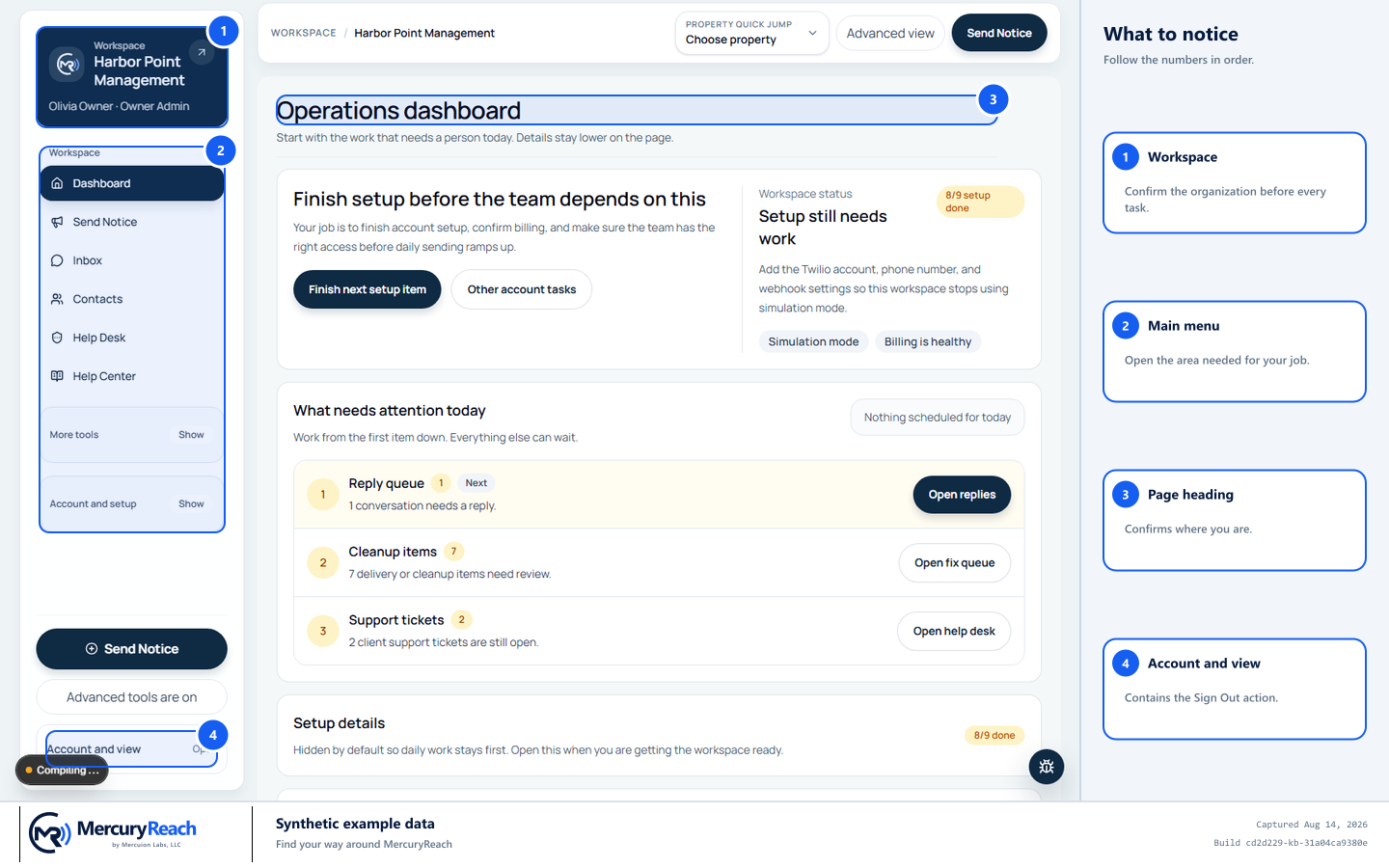
The same navigation landmarks appear throughout MercuryReach.
- 1
Workspace: Confirm the organization before every task.
- 2
Main menu: Open the area needed for your job.
- 3
Page heading: Confirms where you are.
- 4
Account and view: Contains profile, security, and Sign Out actions.
MercuryReach training image · Synthetic example data · Captured 2026-08-20
On a phone
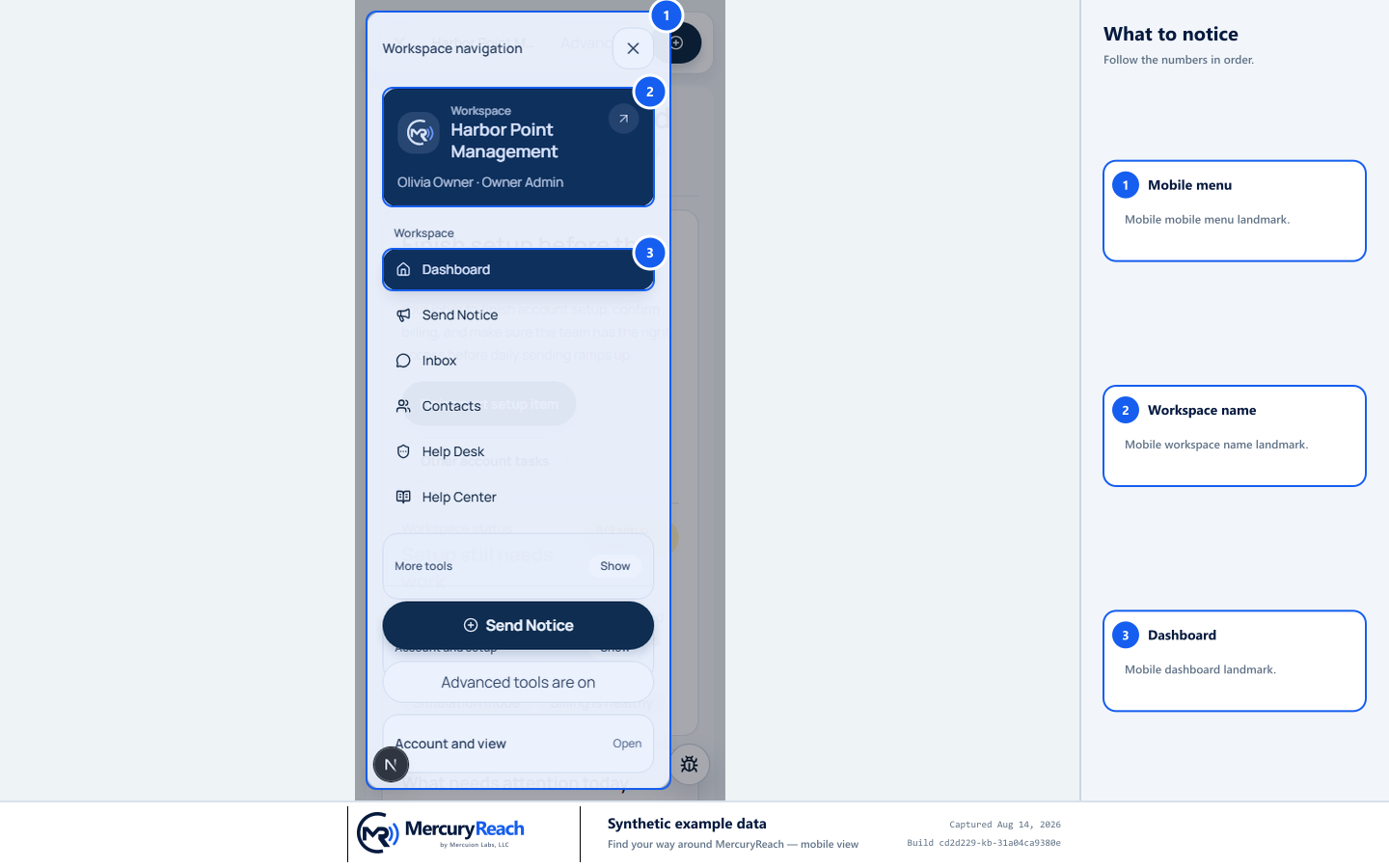
On a phone, open the menu first and verify the workspace before choosing a page.
- 1Mobile menu
- 2Workspace name
- 3Dashboard
MercuryReach training image · Synthetic example data · Mobile view
Check your work
- Dashboard, Contacts, and other items visible for your role open from the menu.
- The highlighted menu item matches the page heading.
If something does not look right
The menu is not visible on a phone.
Select the menu icon in the top corner. Select an item; the menu closes after the page opens.
A page or button is missing.
Read Understand roles and permissions, then ask your Owner/Admin whether your role should include it.