Change your password and manage email verification
Update your current password or choose whether your personal sign-in requires a six-digit email code.
What you will finish
Your password and personal email-verification state match your security needs, and other browser sessions are closed.
Before you begin
Password and security contains two separate controls. Complete only the password or email-verification steps you intend to change.
Email verification sends a six-digit code after your password. Password and email-verification changes keep the browser you are using signed in and require every other browser to sign in again.
Have these ready
- A directly signed-in personal account
- Your current password
- A new unique password with 8 to 128 characters when changing it
- Access to your account email when using email verification
Stop and ask for help if
- The page says changes are unavailable during a support proxy session; return to the native account first.
- Another browser has unsaved work that cannot be interrupted, because a change closes every other browser session.
- Email verification says Required; a workspace policy is active and cannot be turned off from your account.
- You cannot receive email at the address shown for verification.
Step-by-step instructions
- 1
Open account actions
Open Account and view at the bottom of the left menu.
What you should see: The account actions appear.
- 2
Open security
Select Password and security.
What you should see: The Password and security page appears.
- 3
Enter the current password
To change the password, enter your current password in Current password.
What you should see: Hidden characters appear in Current password.
- 4
Enter the new password
In New password, enter a unique password with 8 to 128 characters.
What you should see: Hidden characters appear in New password.
- 5
Confirm the new password
In Confirm new password, enter the same new password again.
What you should see: Both new-password entries match.
- 6
Save the password change
Select Change password once.
What you should see: The page confirms the password change and keeps this browser signed in.
- 7
Read verification status
Under Email verification, read Required, On, or Off.
What you should see: You know whether workspace policy or your personal choice controls the setting.
- 8
Turn verification on
When the status is Off, select the switch labeled Turn on email verification.
What you should see: Email verification changes to On.
- 9
Start turning verification off
When the status is On and not Required, select the switch labeled Turn off email verification.
What you should see: Confirm turning off email verification appears.
- 10
Enter the disable password
In the confirmation, enter your current password in Current password.
What you should see: Hidden characters appear in Current password.
- 11
Confirm turning it off
Select Turn off email verification once.
What you should see: Email verification changes to Off.
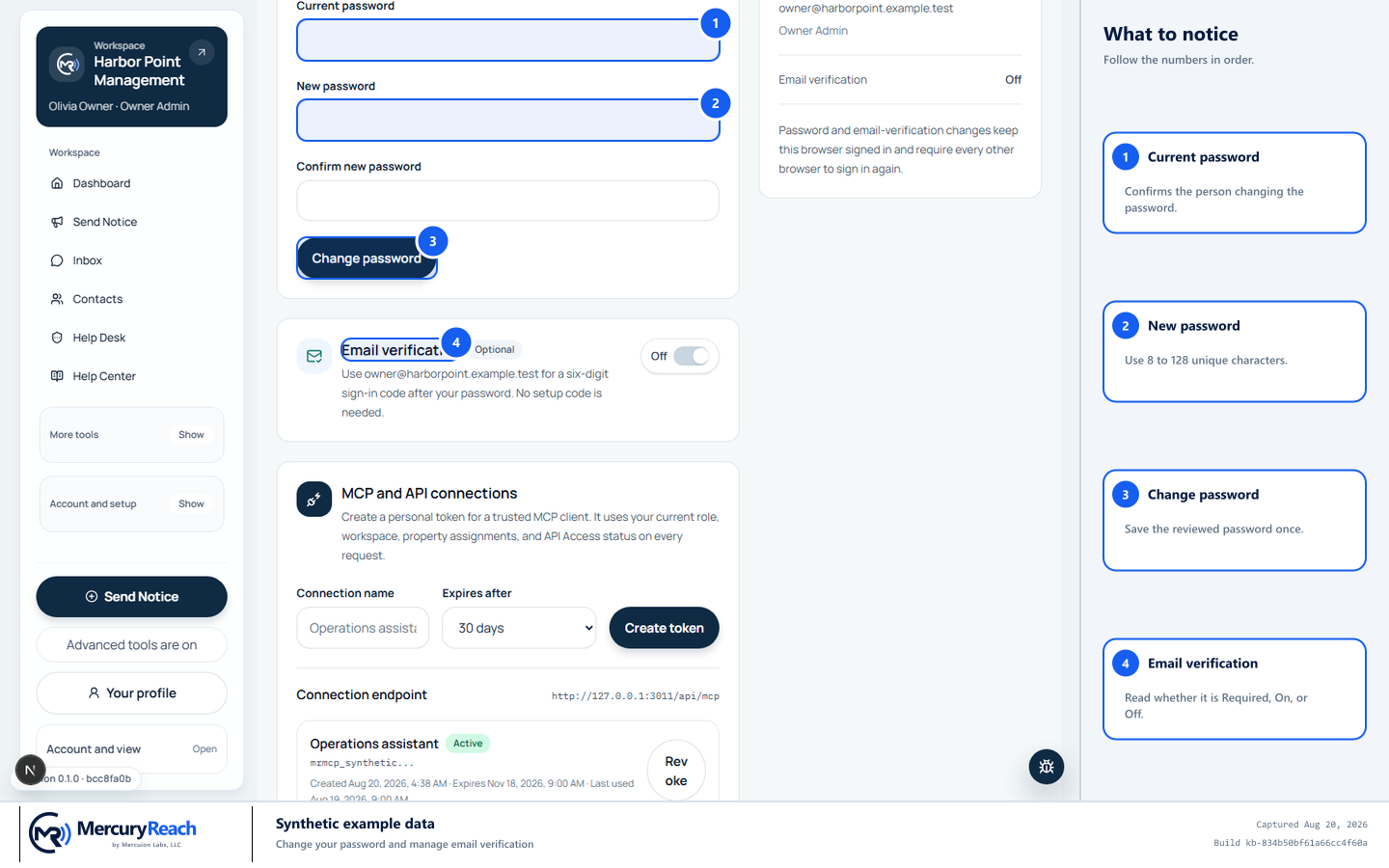
Change only the security control you intend, then verify its recorded state.
- 1
Current password: Confirms the person changing the password.
- 2
New password: Use 8 to 128 unique characters.
- 3
Change password: Save the reviewed password once.
- 4
Email verification: Read whether it is Required, On, or Off.
MercuryReach training image · Synthetic example data · Captured 2026-08-20
Check your work
- The security summary shows the intended Required, On, or Off state.
- The new password works at the next sign-in when it was changed.
- This browser remains signed in and every other browser requires sign-in again after a change.
- When verification is active, the next sign-in continues to Check your email after the password.
If something does not look right
The password change is rejected.
Re-enter Current password, use 8 to 128 characters for the new password, and make New password match Confirm new password. Do not reuse a password from another service.
Email verification cannot be turned off.
If the status is Required, the Owner Admin controls the workspace policy in User management. Do not try to bypass it.
A verification code does not arrive at sign-in.
Follow Verify sign-in with an email code. Confirm the displayed email, check spam or junk, and request one replacement code without repeated retries.