Verify sign-in with an email code
Complete sign-in with the six-digit code sent to your account email when email verification is on or required.
What you will finish
Your newest verification code is accepted and the correct MercuryReach workspace opens.
Before you begin
Email verification is a second sign-in check. After MercuryReach accepts your password, it emails a six-digit code to the address shown on Check your email.
Each code expires after 10 minutes. A newly requested code replaces the older one, so never share a code or approve a sign-in you did not start.
Have these ready
- Your personal MercuryReach email and password
- Access to the mailbox shown on Check your email
- A sign-in attempt you started
Stop and ask for help if
- You did not start the sign-in or someone asks you to read, forward, or paste the code.
- Check your email shows an address that is not yours; select Use a different account.
- The page says the sign-in code is no longer available; return to sign-in rather than retrying old codes.
Step-by-step instructions
- 1
Enter your email
On Sign in to MercuryReach, enter the email on your personal account.
What you should see: Your complete address appears in Email.
- 2
Enter your password
Enter your current password in Password.
What you should see: Hidden characters appear in Password.
- 3
Continue sign-in
Select Sign In once.
What you should see: Check your email appears when email verification applies to your account.
- 4
Confirm the destination
Read the email address shown on Check your email.
What you should see: It matches your personal MercuryReach account.
- 5
Open the code message
Open the newest MercuryReach verification email for this sign-in.
What you should see: The message contains a six-digit code.
- 6
Enter the code
In Verification code, enter or paste the six digits with or without a space.
What you should see: The complete code appears in Verification code.
- 7
Finish sign-in
Select Verify and sign in once.
What you should see: Your permitted starting page appears.
- 8
Confirm the workspace
Read the organization name at the top of the left menu.
What you should see: It matches the workspace you expected.
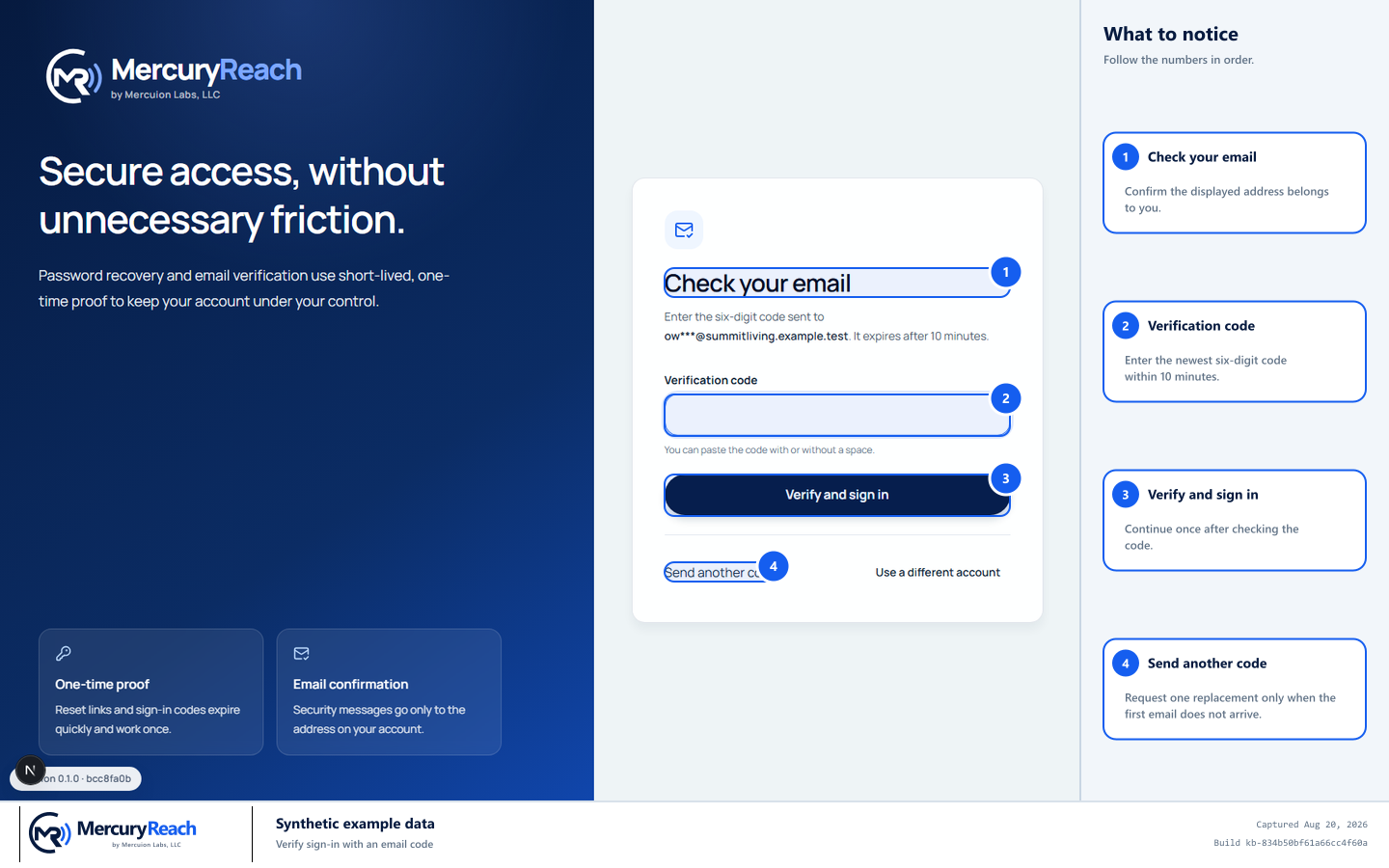
Use only the newest six-digit code for the sign-in you started.
- 1
Check your email: Confirm the displayed address belongs to you.
- 2
Verification code: Enter the newest six-digit code within 10 minutes.
- 3
Verify and sign in: Continue once after checking the code.
- 4
Send another code: Request one replacement only when the first email does not arrive.
MercuryReach training image · Synthetic example data · Captured 2026-08-20
Check your work
- The code was requested by you and sent to the displayed account email.
- The correct workspace or other permitted starting page opens.
- No code was shared, forwarded, stored in a ticket, or reused.
If something does not look right
The email does not arrive.
Check spam or junk and confirm the displayed address. Select Send another code once, then use only the newest email. Do not keep requesting codes if a wait or rate-limit message appears.
The code is rejected or no longer available.
Check that you used the newest six-digit code within 10 minutes. Select Return to sign in to start a new challenge instead of retrying an expired code.
The displayed email is wrong.
Select Use a different account and sign in with your own email. Do not open or use a code sent to another person.