Sign in and sign out
Use the personal account your workspace administrator created, then leave it securely when you finish.
What you will finish
You are signed in to the correct workspace and know how to sign out when your work is finished.
Before you begin
MercuryReach is opened in a web browser, such as Chrome, Edge, or Safari. You do not need to install a program.
A workspace Owner Admin creates your personal account and gives you a temporary password through an approved secure method. Accounts and passwords must never be shared between coworkers.
Have these ready
- The email address on your MercuryReach account
- Your temporary or current password
- The MercuryReach sign-in page
Stop and ask for help if
- Someone asks you to use another person's account.
- The workspace name shown after sign-in is not the organization you expected.
Step-by-step instructions
- 1
Open the sign-in page
Open MercuryReach in your web browser. A browser is the program you use to visit websites, such as Chrome, Edge, or Safari.
What you should see: The page says Sign in to MercuryReach.
- 2
Enter your email
In Email, type the exact address your workspace administrator used for your account.
What you should see: Your complete email address appears in the Email box.
- 3
Enter your password
In Password, type your temporary or current password. The characters are hidden for privacy.
What you should see: Dots appear in the Password box.
- 4
Sign in
Select Sign In once and wait for MercuryReach to respond.
What you should see: Your Dashboard, another permitted starting page, or Check your email appears.
- 5
Finish email verification when required
If Check your email appears, follow Verify sign-in with an email code before continuing.
What you should see: Your permitted starting page is visible, whether or not a code was required.
- 6
Check the workspace
Read the organization name at the top of the left menu before doing any work.
What you should see: The name matches the organization you expected.
- 7
Sign out when finished
Open Account and view near the bottom of the left menu, then select Sign Out.
What you should see: The MercuryReach sign-in page appears again.
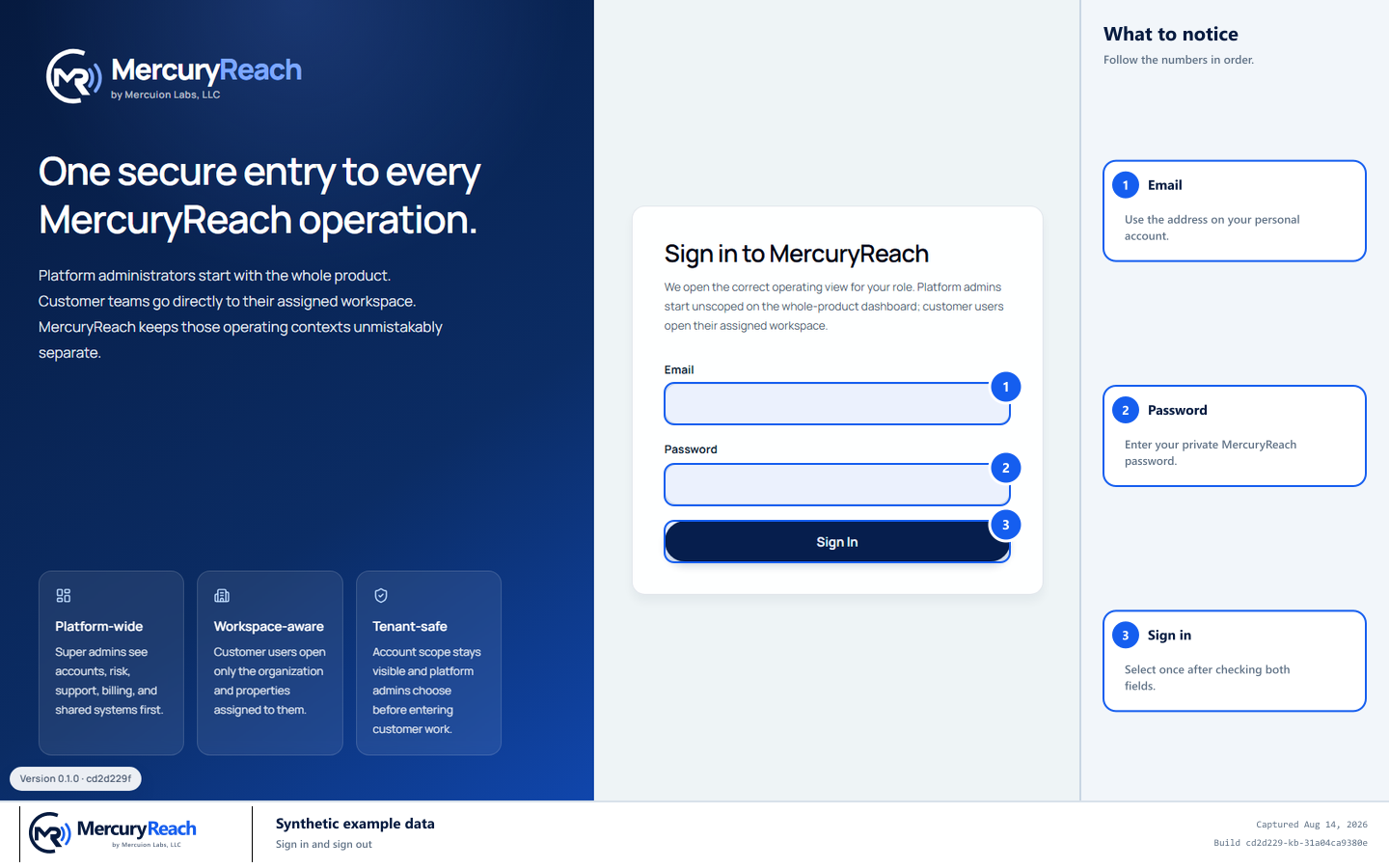
Sign in with your own email and password. All names and addresses shown are synthetic examples.
- 1
Email: Use the address on your personal account.
- 2
Password: Enter your private MercuryReach password.
- 3
Sign In: Select once after checking both fields.
MercuryReach training image · Synthetic example data · Captured 2026-08-20
Check your work
- The correct organization name is visible after sign-in.
- You can open the Dashboard without seeing an access error.
- Sign Out returns you to the sign-in page.
If something does not look right
You cannot sign in.
Check the spelling of your email and confirm Caps Lock is off. If you forgot the password, select Forgot password? and follow Reset a forgotten password. If sign-in still fails, ask an Owner Admin to confirm that your account can sign in. Do not use a coworker's account.
The wrong workspace opens.
Do not open any resident information. Sign out and tell your Owner Admin which workspace name appeared.