Reset a forgotten password
Request a one-time reset link, choose a new password, and return to sign-in without sharing account secrets.
What you will finish
Your old password no longer works, your new password is ready, and other signed-in browsers must sign in again.
Before you begin
Use this process when you cannot remember your own MercuryReach password. The reset page does not reveal whether an email address belongs to an active account.
A reset link works once. Use the newest link you requested, keep it private, and choose a password you do not use for another service.
Have these ready
- Access to the email address on your MercuryReach account
- The MercuryReach sign-in page
- A unique password with 8 to 128 characters
Stop and ask for help if
- You cannot open the mailbox for your MercuryReach account; ask an Owner Admin through your organization's approved contact method instead.
- A reset message or page is unexpected, uses an unfamiliar web address, or asks for your old password, a verification code, payment information, or another person's credentials.
- The page says the link is invalid, expired, or already used; select Request another link instead of trying to alter or reuse it.
Step-by-step instructions
- 1
Open sign-in
Open the MercuryReach sign-in page from your saved address.
What you should see: The page says Sign in to MercuryReach.
- 2
Open password recovery
Select Forgot password?.
What you should see: The Reset your password page appears.
- 3
Enter your account email
In Email, enter the address on your personal MercuryReach account.
What you should see: The complete address appears in Email.
- 4
Request the link
Select Send reset link once.
What you should see: The page says to check your email if an active account matches the address.
- 5
Open the reset message
Open the newest MercuryReach password-reset message you requested.
What you should see: The message contains one password-reset link.
- 6
Open the one-time link
Select the password-reset link once.
What you should see: The Choose a new password page appears.
- 7
Enter the new password
In New password, enter your new unique password.
What you should see: Hidden characters appear in New password.
- 8
Confirm the new password
In Confirm new password, enter the same password again.
What you should see: Both password entries match.
- 9
Choose future email verification
If Use email verification for future sign-ins is optional on the page, select it only when you want an emailed code after your password.
What you should see: The checkbox reflects your choice, or the page says Email verification is required by your workspace.
- 10
Save the password
Select Save new password once.
What you should see: The sign-in page says Password reset complete.
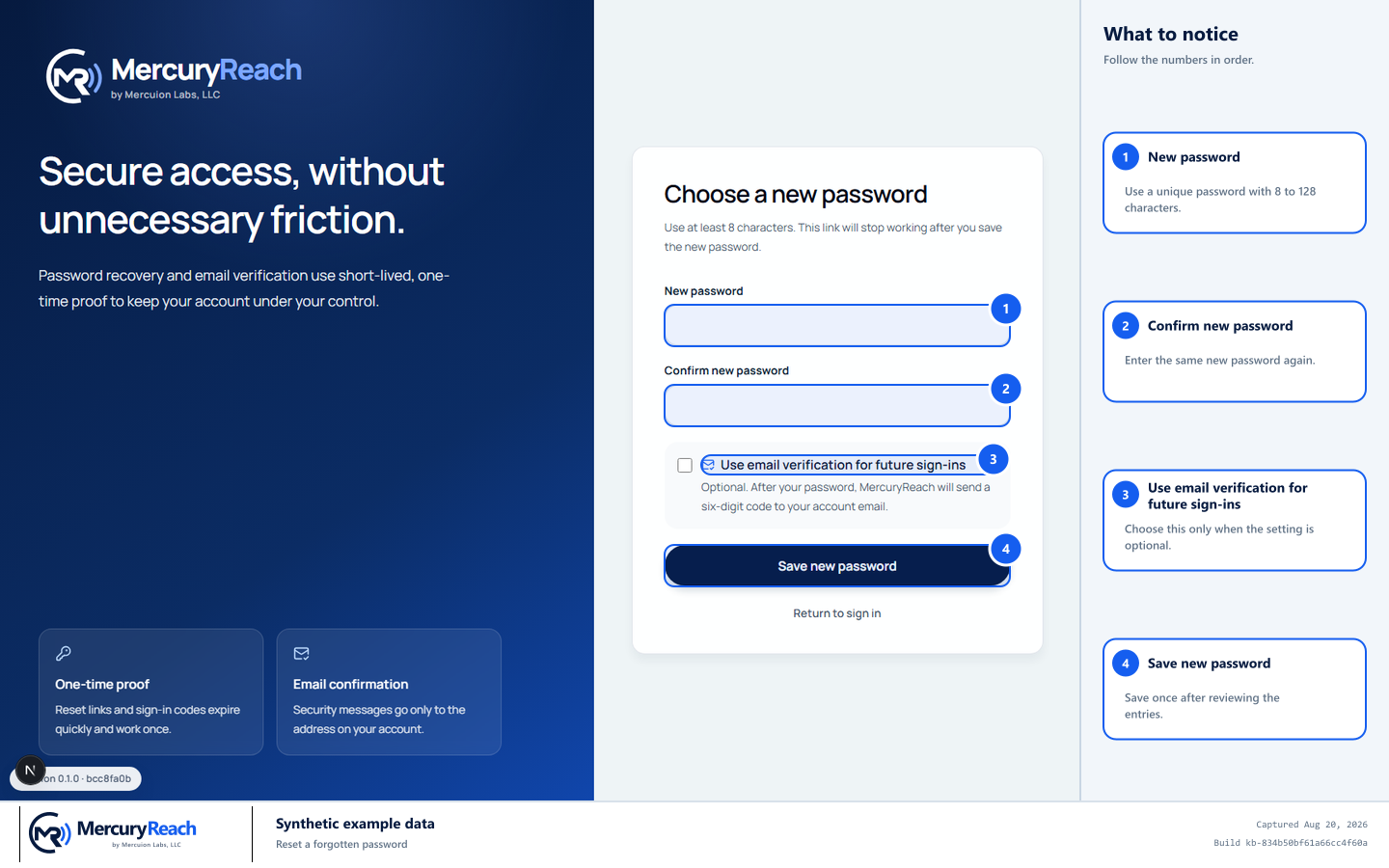
Use a private one-time link, enter the new password twice, and save once.
- 1
New password: Use a unique password with 8 to 128 characters.
- 2
Confirm new password: Enter the same new password again.
- 3
Use email verification for future sign-ins: Choose this only when the setting is optional.
- 4
Save new password: Save once after reviewing the entries.
MercuryReach training image · Synthetic example data · Captured 2026-08-20
Check your work
- Sign in with the new password and, when required, the emailed verification code.
- The previous password is no longer accepted.
- Every other browser that was signed in to this account now requires sign-in.
If something does not look right
No reset email arrives.
Check the exact address and its spam or junk folder, then wait before requesting one more link. The page gives the same response even when no active account matches. Ask an Owner Admin to confirm your account email and active status without sharing a password.
The link is invalid, expired, or already used.
Select Request another link and use only the newest message. Do not retry, edit, or forward the invalid link.
You no longer have the account mailbox.
Stop. Ask an Owner Admin through your organization's approved process to verify your identity and update access; do not create or borrow another account.