Update your profile and sign-in email
Change your displayed name or confirm a new email address for sign-in and account recovery.
What you will finish
Your profile name is current and, when requested, your confirmed new email becomes the address used to sign in.
Before you begin
Your profile name appears in the account menu and activity history. Changing it does not change your role, workspace, or property assignments.
A requested sign-in email stays pending until you use the confirmation sent to the new address. Confirming the change signs every browser out; sign in again with the new address and your existing password.
Complete only the profile-name or sign-in-email steps you intend to change.
Have these ready
- A directly signed-in personal account
- Your current MercuryReach password
- Access to the proposed new email address
Stop and ask for help if
- The page says profile changes are unavailable during a support proxy session; return to the native account before changing anything.
- The proposed address is shared, belongs to another person, or cannot receive the confirmation email.
- Another browser has unsaved work that cannot be interrupted, because confirming the new email signs every browser out.
- The confirmation message is unexpected, names the wrong address, or opens an unfamiliar web address.
Step-by-step instructions
- 1
Open account actions
Open Account and view at the bottom of the left menu.
What you should see: The account actions appear.
- 2
Open your profile
Select Your profile.
What you should see: The Your profile page appears.
- 3
Update your first name
In First name, enter the approved name MercuryReach should display.
What you should see: First name contains the correct value.
- 4
Update your last name
In Last name, enter the approved name MercuryReach should display.
What you should see: Last name contains the correct value.
- 5
Save the profile
Select Save profile once.
What you should see: The saved name appears in your profile and account menu.
- 6
Enter the new email
In New email address, enter the address you will use for sign-in and recovery.
What you should see: The complete new address appears.
- 7
Confirm your password
In Current password, enter your current MercuryReach password.
What you should see: Hidden characters appear in Current password.
- 8
Send the confirmation
Select Send confirmation email once.
What you should see: Sign-in email shows that confirmation is waiting for the new address.
- 9
Open the confirmation message
Open the newest MercuryReach email-change message at the new address.
What you should see: The message contains one confirmation link for the requested address.
- 10
Open the confirmation link
Select the email-confirmation link once.
What you should see: Confirm sign-in email shows the requested new address.
- 11
Confirm the new email
Select Confirm new email once.
What you should see: Every browser is signed out and sign-in says Sign-in email confirmed.
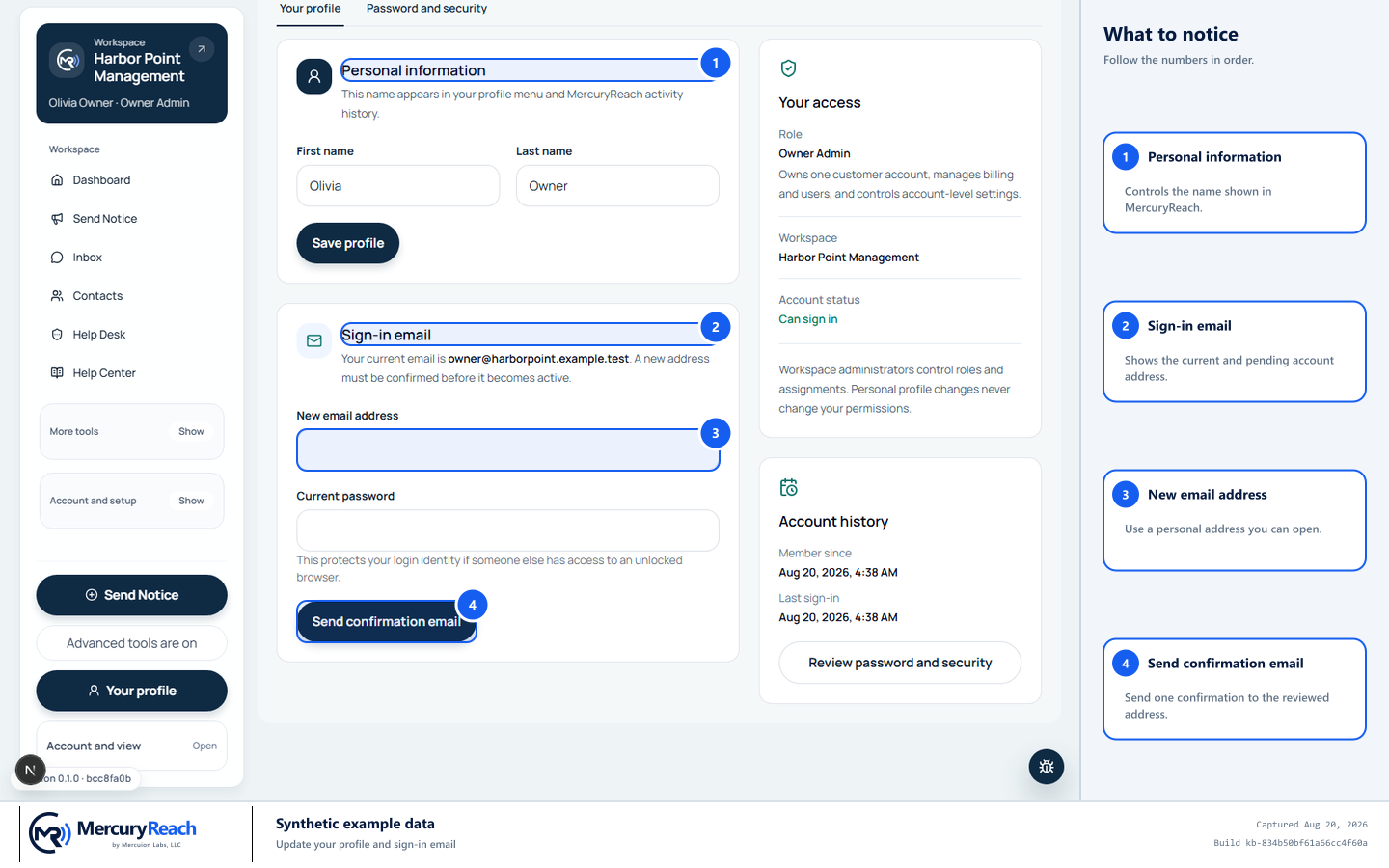
Save the profile name separately, then confirm any new sign-in email from its mailbox.
- 1
Personal information: Controls the name shown in MercuryReach.
- 2
Sign-in email: Shows the current and pending account address.
- 3
New email address: Use a personal address you can open.
- 4
Send confirmation email: Send one confirmation to the reviewed address.
MercuryReach training image · Synthetic example data · Captured 2026-08-20
Check your work
- Your saved first and last name appear in the account menu and activity history.
- Sign in with the confirmed new email and your existing password.
- The previous sign-in email no longer signs in after confirmation.
- Every other browser requires sign-in again.
If something does not look right
The confirmation email does not arrive.
Confirm New email address, check spam or junk, and wait before sending one replacement. Sending another request invalidates the earlier request.
The link is invalid, expired, or already used.
Return to Your profile and send a new confirmation request. Use only its newest link.
You need to keep using the current email.
Do not confirm the pending request. The current email remains active until confirmation; a later request replaces the pending one.