Require workspace email verification
Require every workspace user to enter a six-digit email code after their password and understand the immediate sign-out effect.
What you will finish
The workspace requirement shows the approved Required or Optional state, and affected users know how to complete their next sign-in.
Before you begin
Workspace email verification is a sign-in policy for every user, including Owner Admins. When it is required, each person enters a six-digit code sent to their account email after entering a password.
Turning the requirement on signs out every other workspace session immediately. Turning it off does not erase personal email-verification choices, so some people may still receive a code.
Have these ready
- A directly signed-in Owner Admin account
- Approved workspace security policy
- Confirmation that every active user can receive email at the address on their account
- A planned time when other sessions can be interrupted
Stop and ask for help if
- You are using a support proxy session; only a directly signed-in Owner Admin can change this requirement.
- The change has not been approved or you cannot confirm that every active user can open their account email.
- Another user has unsaved, scheduled, or time-sensitive work that cannot be interrupted by an immediate sign-out.
- User management shows an unexpected workspace or an unfamiliar current Required or Optional state.
Step-by-step instructions
- 1
Open Settings
Select Settings in the left menu.
What you should see: The Settings menu opens.
- 2
Open Users
Select Users.
What you should see: User management appears.
- 3
Find sign-in security
Find Email verification for this workspace.
What you should see: The section shows Required or Optional.
- 4
Read the current state
Read the Required or Optional status before making a change.
What you should see: You know whether the saved workspace policy is currently on or off.
- 5
Choose the requirement
Select or clear Require email verification for all users to match the approved policy.
What you should see: The checkbox shows the intended state.
- 6
Save the requirement
Select Save requirement once.
What you should see: When turning the requirement on, a confirmation asks about signing out active sessions; when turning it off, the new state saves without that confirmation.
- 7
Confirm the sign-out effect
When the confirmation appears, approve it only after verifying that the interruption is safe.
What you should see: The workspace policy is saved and every other workspace session is signed out.
- 8
Read the saved status
Read the status in Email verification for this workspace again.
What you should see: It shows the approved Required or Optional state.
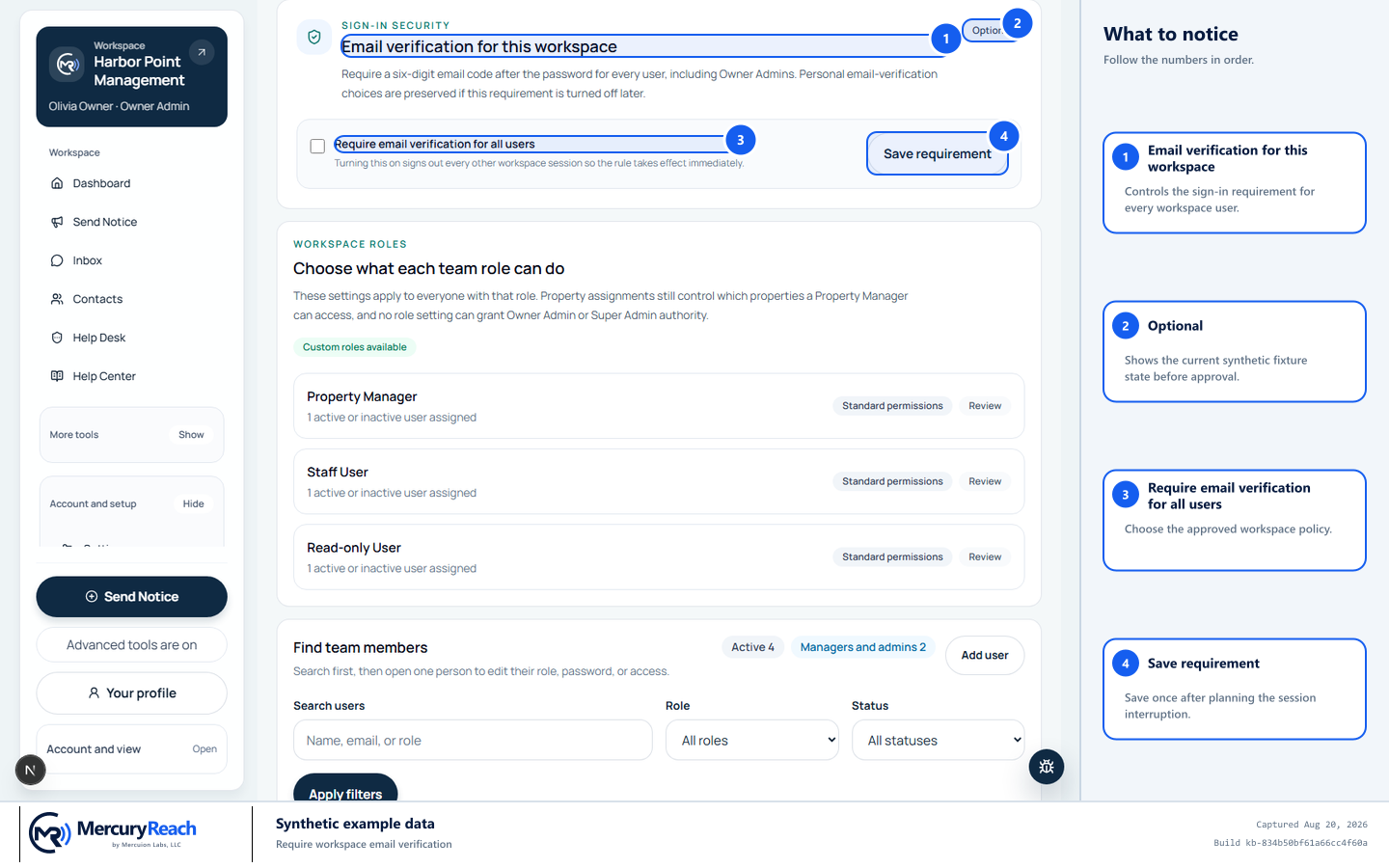
Review the current state and the immediate sign-out effect before saving the workspace requirement.
- 1
Email verification for this workspace: Controls the sign-in requirement for every workspace user.
- 2
Optional: Shows the current synthetic fixture state before approval.
- 3
Require email verification for all users: Choose the approved workspace policy.
- 4
Save requirement: Save once after planning the session interruption.
MercuryReach training image · Synthetic example data · Captured 2026-08-20
Check your work
- Email verification for this workspace shows the approved Required or Optional status.
- After enabling, the next request from another previously signed-in browser returns to sign-in.
- After enabling, a test user's valid password continues to Check your email for a six-digit code.
- After disabling, users who personally enabled email verification still receive a code.
If something does not look right
The controls are not available.
Confirm that you are directly signed in as an Owner Admin. End any support proxy session; do not ask support to bypass the direct-session guard.
A user cannot receive the code.
Do not share another user's code or turn off policy without approval. Confirm the account email and active status through User management, then follow the approved recovery process.
The saved state is unexpected.
Stop further changes, preserve the displayed Required or Optional state, and ask another authorized Owner Admin or the Help Desk to review the workspace audit record.