Understand roles and permissions
Understand standard customer roles, approved custom permissions, property scope, and add-on gates.
What you will finish
You know which tasks belong to your role and who can approve work you cannot perform.
Before you begin
Permissions protect resident information and prevent accidental changes. Your role is selected by your organization's Owner Admin.
Owner Admin authority is fixed. Property Manager, Staff User, and Read-only User start with standard permissions, but an Owner Admin can adjust the tasks shared by each of those roles when Custom roles is enabled. Property assignments, active add-ons, billing state, and page safety checks can still limit an allowed task.
Have these ready
- Know which email address you use for MercuryReach
Stop and ask for help if
- Never use another person's account to get around a missing permission.
Step-by-step instructions
- 1
Read your role
At the top of the left menu, read the role shown beside your name. An Owner Admin can also open Settings, then Users, to review team roles.
What you should see: One customer role is displayed.
- 2
Match the task to current access
Compare the exact menu item, page, and action with the duties your Owner Admin approved. Treat the controls shown on the current request as your effective access.
What you should see: You know whether the task is currently available without assuming every user with the same role has standard permissions.
- 3
Request the smallest needed change
If a business duty is missing, tell your Owner Admin the exact page and action you need. Do not request a broader role without a reason.
What you should see: The Owner Admin can approve or decline the correct permission or role.
- 4
Retry on a new request
After an approved role or custom-permission change, open the target page again. Signing out is not required.
What you should see: The next page request shows the updated allowed controls.
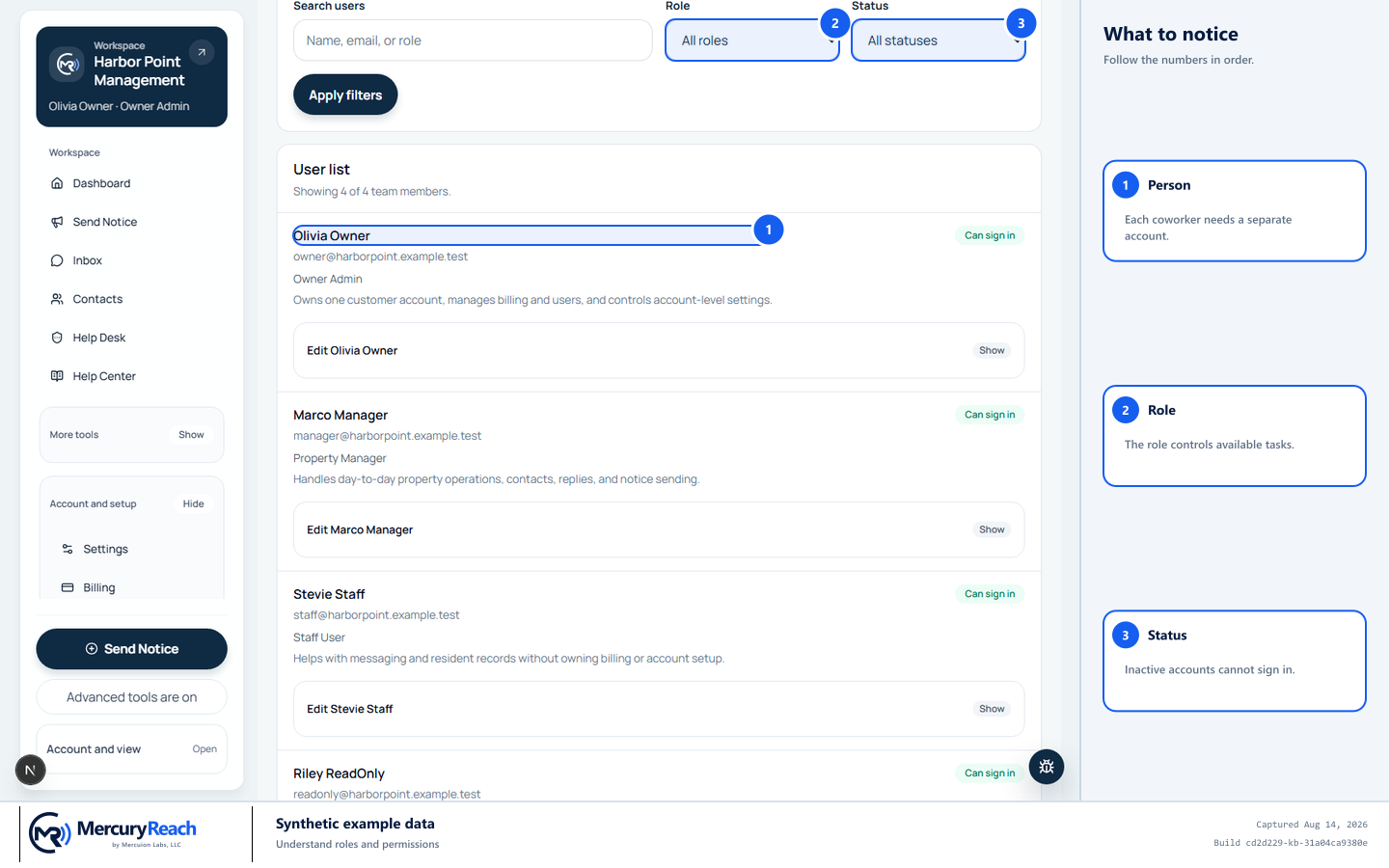
Assign each person only the access needed for their job.
- 1
Person: Each coworker needs a separate account.
- 2
Role: The role controls available tasks.
- 3
Status: Inactive accounts cannot sign in.
MercuryReach training image · Synthetic example data · Captured 2026-08-20
Check your work
- Your displayed role matches the role assigned by your Owner Admin.
- Visible menu items and actions match the standard or approved custom policy for your role.
- Property and add-on boundaries still apply after a permission change.
If something does not look right
Your role looks correct but a task is unavailable.
The custom policy, an add-on, billing state, account status, or property assignment may still block it. Send the exact page and action to your Owner Admin.
A permission changed but the page is unchanged.
Open the target page again to make a new request. If it is still unchanged, ask the Owner Admin to check your exact role, active status, custom policy, add-on, and property scope.