Use a Read-only User account
Use only the review or other tasks granted by your workspace's standard or approved custom Read-only User policy.
What you will finish
You stay within the current Read-only User policy, record accurate context, and request any missing task without a permission workaround.
Before you begin
Standard Read-only User permissions are designed for review. When Custom roles is enabled, an Owner Admin can grant selected additional tasks to every Read-only User in the workspace. A visible control does not replace your organization's approval for that task.
Have these ready
- An active Read-only User account
- A clear job and approved workspace, property, and task scope
- The standard or custom access expected for your role
Stop and ask for help if
- A visible edit, send, export, or destructive action is outside the task your Owner Admin approved.
- A record is outside your approved workspace or property scope.
- You are asked to use another account to get around a missing permission.
Step-by-step instructions
- 1
Confirm your role and workspace
At the top of the left menu, read the organization name and Read-only User beside your name.
What you should see: Your role and workspace match the approved job.
- 2
Open an available source
Select the menu item for the approved task from the items currently visible to you.
What you should see: The requested page opens without an access error.
- 3
Read status and time context
Include status, timestamp, time zone, and filters with any number or conclusion.
What you should see: Your notes can be checked by another person.
- 4
Check an available action
Before using an edit, send, export, or destructive action, confirm that the exact action is included in the approved custom policy and your assigned job.
What you should see: Only an approved action within current access continues.
- 5
Request a missing task
Send the record link and exact missing action to your Owner Admin. Do not request another person's password or a broader role without a reason.
What you should see: The Owner Admin can approve the smallest permission or route the change to an authorized coworker.
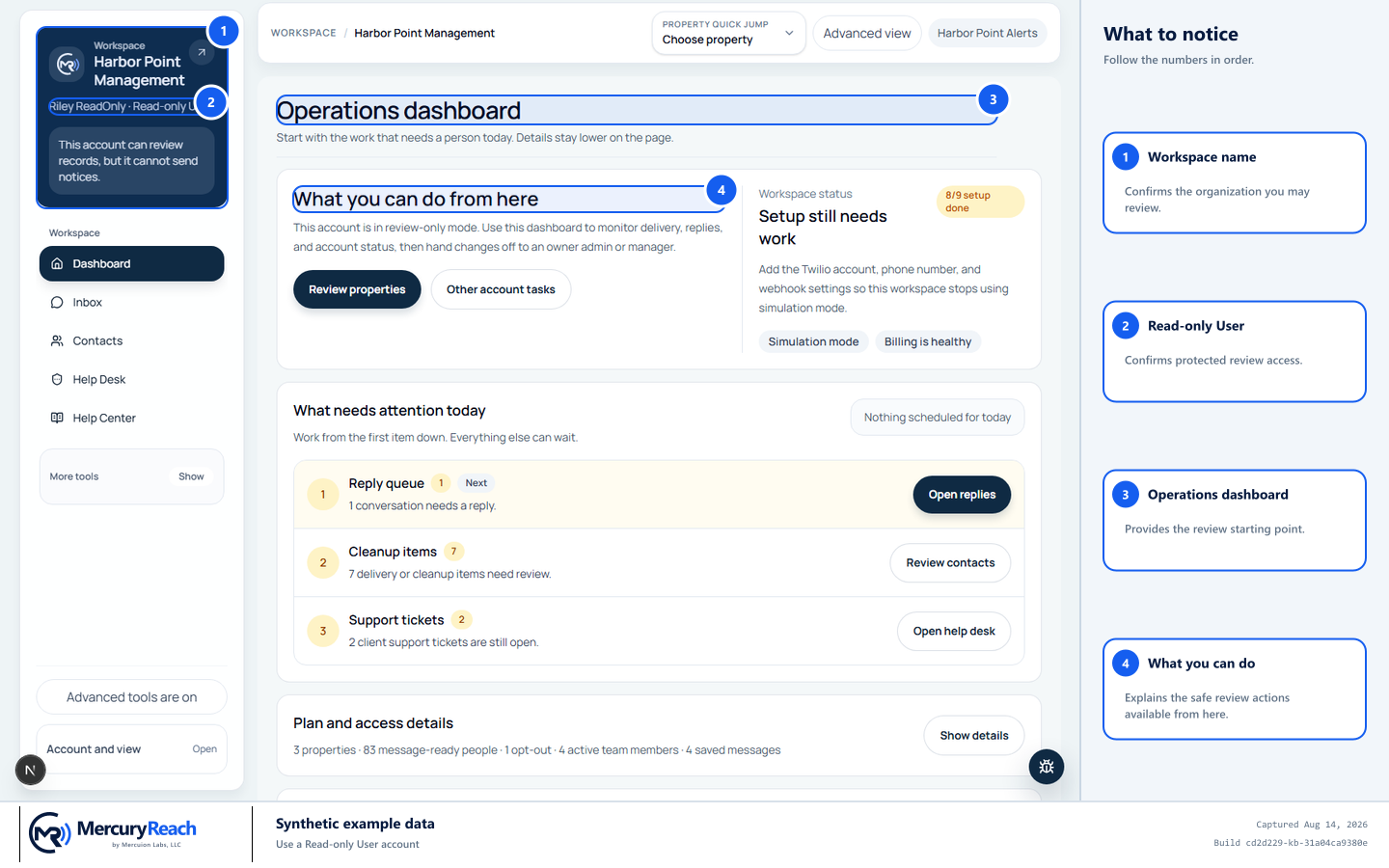
Read-only Users follow the workspace's approved standard or custom policy for each visible task.
- 1
Workspace name: Confirms the organization you may review.
- 2
Read-only User: Confirms the account's named customer role.
- 3
Operations dashboard: Provides the review starting point.
- 4
What you can do: Explains the safe review actions available from here.
MercuryReach training image · Synthetic example data · Captured 2026-08-20
Check your work
- Every page and action used was visible on a new request and matched the approved standard or custom policy.
- Review notes identify filters and time context.
- Missing-task requests point to the exact page, action, and authorized Owner Admin.
If something does not look right
A needed page is missing.
Ask the Owner Admin to check the Read-only User custom policy, add-on, billing state, and property scope for that exact page. A saved permission applies on the next page request; signing out is not required.
An unexpected edit or Send button appears.
Do not use it until the Owner Admin confirms that the exact action is part of the approved custom policy. If it is not approved, send the page and action to the Owner Admin or Help Desk for review.