Use the Dashboard to plan your work
Read workspace health, current activity, and shortcuts without treating a summary card as a final report.
What you will finish
You identify work that needs attention and open its source page for details.
Before you begin
The Dashboard is an overview. Counts can update while campaigns process, so open the related page before making a decision or reporting a final number.
Have these ready
- You are signed in to the correct workspace
Stop and ask for help if
- The workspace name is wrong.
- A warning indicates suspended, recovery, provider, or data-integrity status you do not understand.
Step-by-step instructions
- 1
Confirm the workspace and period
Read the workspace name and any date or reporting period shown.
What you should see: You know whose data and which time period the cards summarize.
- 2
Read status before counts
Review readiness, billing, or provider notices before campaign and contact totals.
What you should see: Blocking conditions are not overlooked.
- 3
Open attention items
Select a Fix queue, inbox, scheduled, or help item that requires your role.
What you should see: The detailed source page opens.
- 4
Verify at the source
Use the detail page's filters, status, and timestamp before acting or reporting.
What you should see: Your next action is based on the complete record.
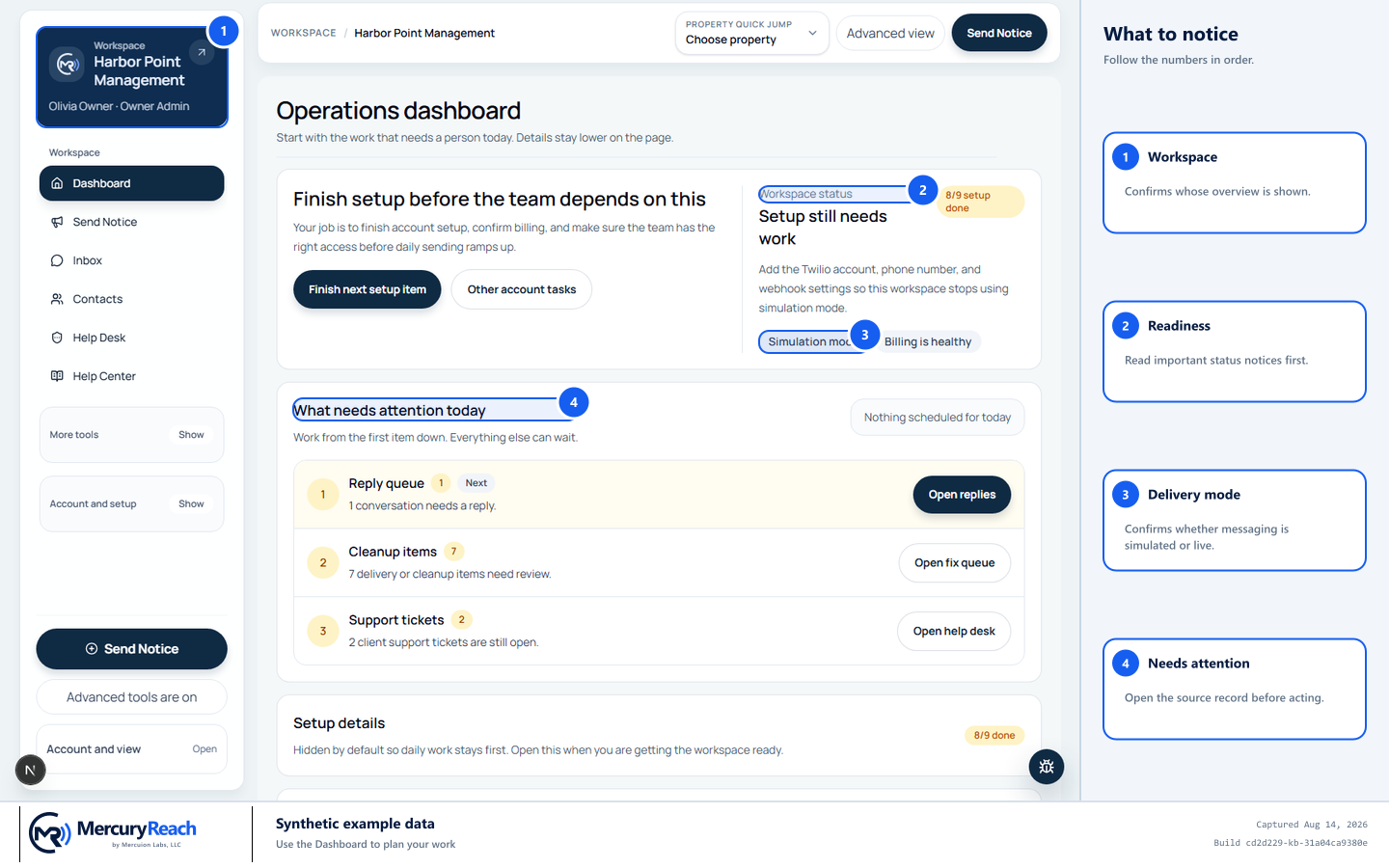
Use Dashboard summaries to find work, then verify details on the source page.
- 1
Workspace: Confirms whose overview is shown.
- 2
Readiness: Read important status notices first.
- 3
Delivery mode: Confirms whether messaging is simulated or live.
- 4
Needs attention: Open the source record before acting.
MercuryReach training image · Synthetic example data · Captured 2026-08-20
Check your work
- Workspace and reporting period are known.
- Every urgent card has an owner or next step.
- Reported totals come from the detailed source page.
If something does not look right
A card and detail page differ.
Refresh once and check filters and processing status. Use the detail page and note the time when reporting.
A card is not clickable.
Your role may allow only the summary. Ask the Owner/Admin for an approved detail or report.