Read and reply in the Inbox
Use the Inbox to review resident conversations and, when your current permissions allow, send one approved reply.
What you will finish
You understand the correct conversation and queue. Users with Inbox reply permission can answer once and move finished work to Done; users with view-only access leave it unchanged.
Before you begin
Inbox is the page label in MercuryReach; Shared Inbox is the add-on that makes the page available. Use Reply now, Opt-outs, and Done to separate conversations that need a response from consent reviews and finished work. Custom role permissions can allow viewing without allowing replies or queue changes.
Have these ready
- The Shared Inbox add-on is active and Inbox is visible for your current permissions
- For replies: Inbox reply permission and any required billing readiness
- Approved response guidance and an escalation path
Stop and ask for help if
- The page says Two-way inbox or Turn on Shared Inbox to manage replies here; the add-on is inactive, so do not work around the gate.
- The resident identity or property is uncertain.
- The message describes an emergency, threat, legal issue, payment data, or sensitive matter outside your response authority.
- Another coworker is actively handling the conversation.
- The page says View only and the task requires replying or changing a queue.
Step-by-step instructions
- 1
Open the conversation
Open Inbox, select an unread conversation, and check the resident, property, channel, and full message history.
What you should see: You understand who wrote and what has already been said.
- 2
Check the queue
Confirm whether the conversation is under Reply now, Opt-outs, or Done. Do not reply from Opt-outs until the consent issue has been handled correctly.
What you should see: You know whether a reply is allowed and what work remains.
- 3
Follow current permissions
If the conversation says View only, review the history and give its link to a coworker with Inbox reply permission. Do not try to reply or change its queue.
What you should see: A user without reply permission leaves the conversation unchanged.
- 4
Choose the next action
Reply only within your authority. Coordinate with your team and use your organization's emergency or specialist process when required.
What you should see: The conversation has the right handling path.
- 5
Draft and review
Write a clear response, verify each fact against the conversation and approved records, and do not request or repeat unnecessary sensitive information.
What you should see: The response answers the request and states the next step.
- 6
Send the reply
Select Send reply once and wait for the message to appear in history.
What you should see: One reply appears in the conversation.
- 7
Finish the thread
When no more work is waiting, select Mark done once.
What you should see: The conversation moves to Done.
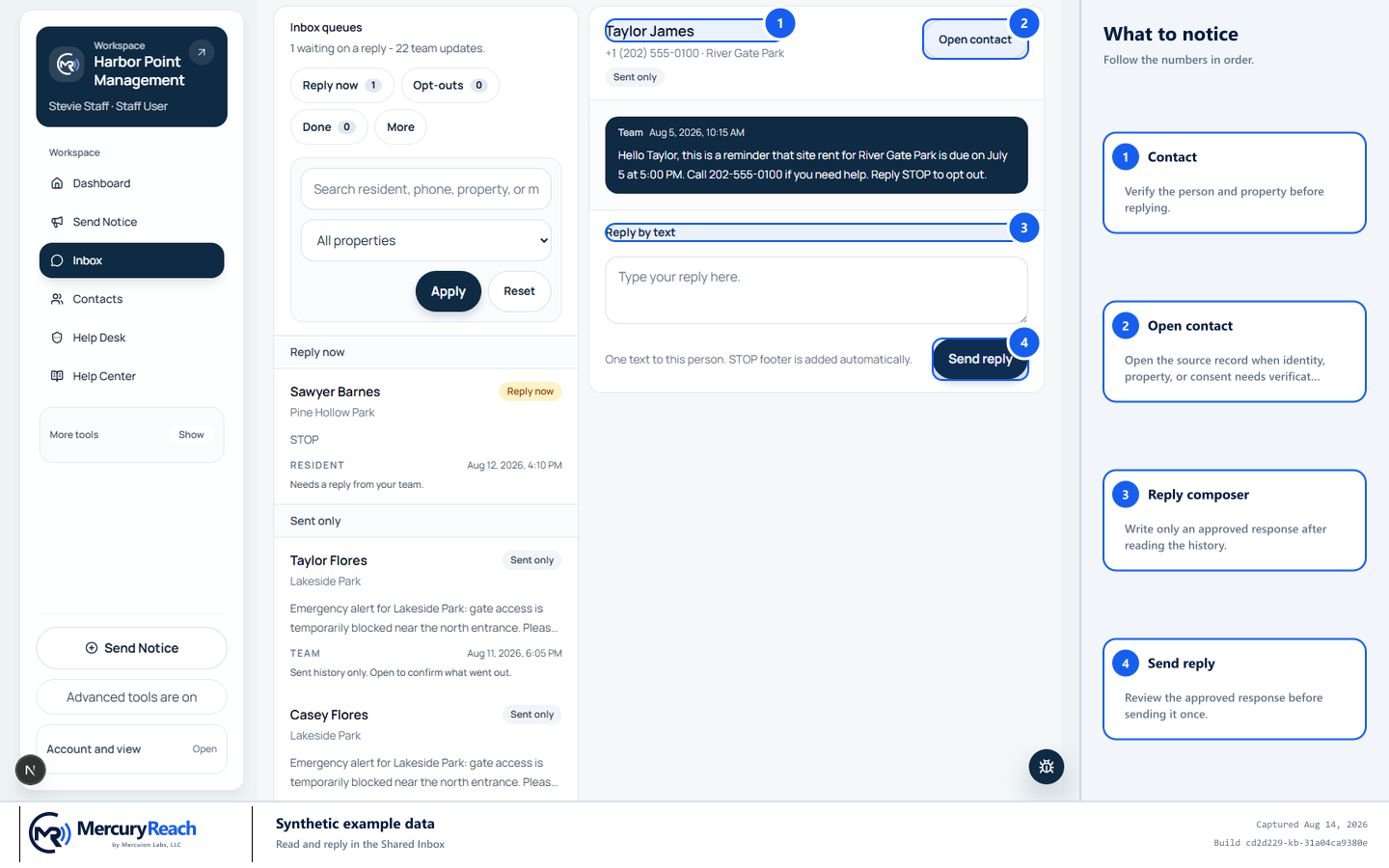
In the Inbox, confirm the selected contact, read the full history, then review one reply before sending.
- 1
Contact: Verify the person and property before replying.
- 2
Open contact: Open the source record when identity, property, or consent needs verification.
- 3
Reply composer: Write only an approved response after reading the history.
- 4
Send reply: Review the approved response before sending it once.
MercuryReach training image · Synthetic example data · Captured 2026-08-20
On a phone
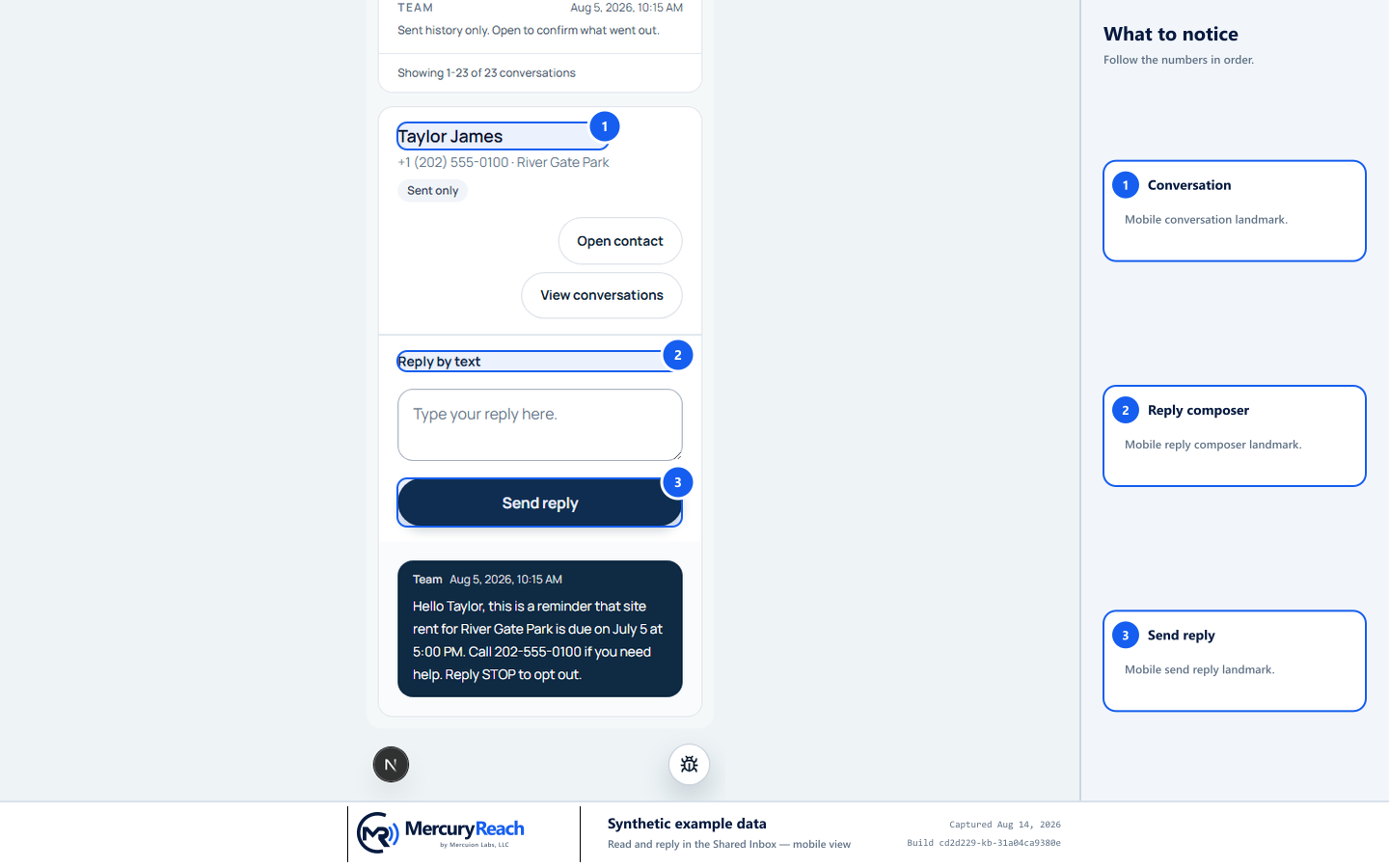
On a phone, the Inbox shows the selected conversation and reply composer in one vertical flow.
- 1Conversation
- 2Reply composer
- 3Send reply
MercuryReach training image · Synthetic example data · Mobile view
Check your work
- A view-only user can review the conversation without reply or Mark done controls.
- For an authorized reply, the message appears once in the conversation history.
- A finished conversation appears under Done.
- Any promised follow-up has a responsible person in your team's normal process.
If something does not look right
Inbox is unavailable.
If the page says Turn on Shared Inbox to manage replies here, ask an Owner Admin to confirm the add-on through the approved billing or support process. Do not try a direct action to bypass it.
Reply is blocked.
Check the banner for consent, billing, provider, or permission restrictions. Preserve the reply as approved notes if available and escalate rather than switching channels without permission.
Two people replied.
Stop additional messages and coordinate internally. Do not send an apology or correction until your team reviews the impact.