Add, change, and turn off team members
Give each coworker a separate account with the smallest role needed for their job.
What you will finish
The right people have individual, active accounts with appropriate roles and property access.
Before you begin
Never share one account. Separate accounts make permissions safer and keep the audit record understandable.
Have these ready
- Owner/Admin access
- The coworker's approved work email
- A secure temporary password of at least 8 characters
- Their job role and, for Property Managers, approved property assignments
Stop and ask for help if
- The email belongs to a shared mailbox or another person.
- You cannot confirm the requested role or property scope with the person's manager.
Step-by-step instructions
- 1
Open User management
Go to Settings, then Users.
What you should see: The User management page and current team list appear.
- 2
Check for an existing account
Use Search users to look for the exact email before adding anyone.
What you should see: You avoid creating a duplicate account.
- 3
Open Add team member
Select Add user, then open Add team member. Enter First name, Last name, Email, Role, and a Temporary password.
What you should see: The form shows the correct person and smallest role needed for the job.
- 4
Assign properties when needed
For a Property Manager, select only the properties the person is responsible for.
What you should see: The listed assignments match the approved scope.
- 5
Create the account
Read the email, role, and assignments carefully, then select Create team member once. Give the temporary password to the person through an approved secure method.
What you should see: The team list shows the new person as Can sign in.
- 6
Maintain access
Open Edit followed by the person's name to change their role, property assignments, password, or User can sign in setting. Use Turn user off promptly when access is no longer needed.
What you should see: The list shows Can sign in or Turned off and the current role and scope.
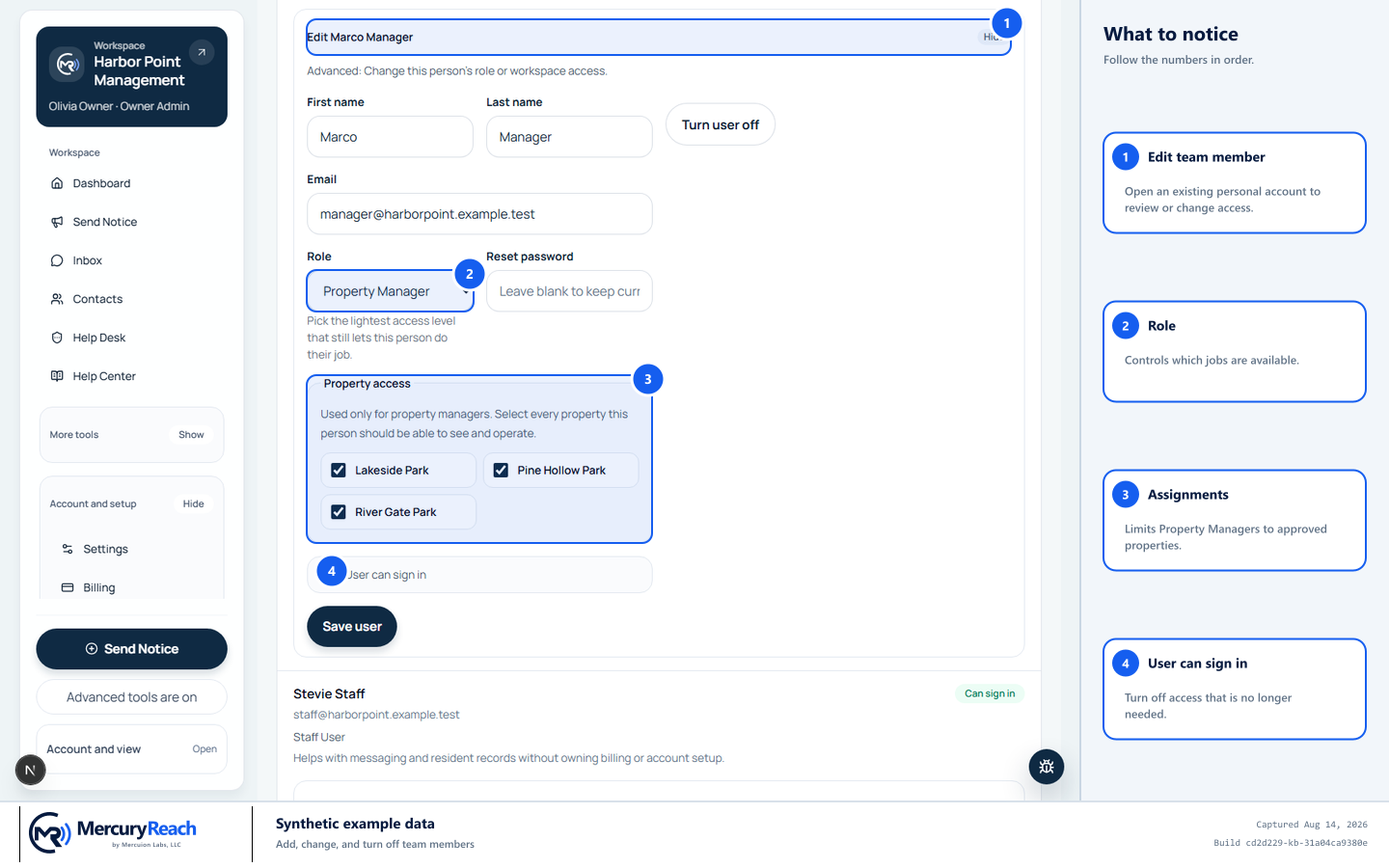
Every coworker gets an individual account and the smallest access needed.
- 1
Edit team member: Open an existing personal account to review or change access.
- 2
Role: Controls which jobs are available.
- 3
Assignments: Limits Property Managers to approved properties.
- 4
User can sign in: Turn off access that is no longer needed.
MercuryReach training image · Synthetic example data · Captured 2026-08-20
Check your work
- Each person has one account under their own email.
- Property Managers see only approved properties.
- A departed or unnecessary user shows Turned off and cannot sign in.
If something does not look right
The person cannot sign in.
Confirm the exact email and that the account says Can sign in. If needed, open Edit, enter a new temporary password under Reset password, select Save user, and share it securely.
The person can see too much or too little.
Turn the user off if exposure is possible, then correct the role and property assignments before turning access on again.