Customize team role permissions
Choose the exact tasks available to every Property Manager, Staff User, or Read-only User in your workspace.
What you will finish
Each subordinate role has the smallest approved set of tasks, and affected users receive the change on their next page request.
Before you begin
Custom permissions change everyone who has the selected role. Owner Admin and Super Admin authority cannot be changed here.
A permission never expands the workspace or properties a person can access. Add-ons, billing status, consent, and delivery readiness can still block a task.
Have these ready
- Owner Admin access without an active support proxy
- Custom roles enabled for the workspace by a direct Super Admin
- An approved list of duties for the role
Stop and ask for help if
- You cannot confirm whether every person with the role should receive the change.
- The request includes sending, exports, consent restoration, billing, internal help-desk work, launch approval, or user management without separate approval.
- A scheduled or sending campaign depends on access you plan to remove.
Step-by-step instructions
- 1
Open Workspace roles
Go to Settings, then Users. Find Choose what each team role can do under Workspace roles.
What you should see: Property Manager, Staff User, and Read-only User appear as separate role cards.
- 2
Open one role
Open the exact role you are changing. Read how many active or inactive users are assigned before continuing.
What you should see: The role description and grouped permission choices appear.
- 3
Choose approved tasks
Select only the tasks required for that job. Review every item marked Sensitive separately. MercuryReach automatically adds required viewing permissions.
What you should see: The selected list matches the approved duties without granting Owner Admin or Super Admin authority.
- 4
Save once
Select Save custom permissions once and wait for confirmation.
What you should see: The role card says Custom permissions and shows a new revision.
- 5
Verify the affected user
Ask one affected user to open a new page request. Confirm the menu, direct page, and action match the approved duties. Signing out is not required.
What you should see: New permissions apply on the next request and denied tasks remain unavailable.
- 6
Restore defaults when needed
To remove the custom policy for one role, open that role and select Restore standard permissions after reading the confirmation.
What you should see: That role returns to MercuryReach's standard permissions.
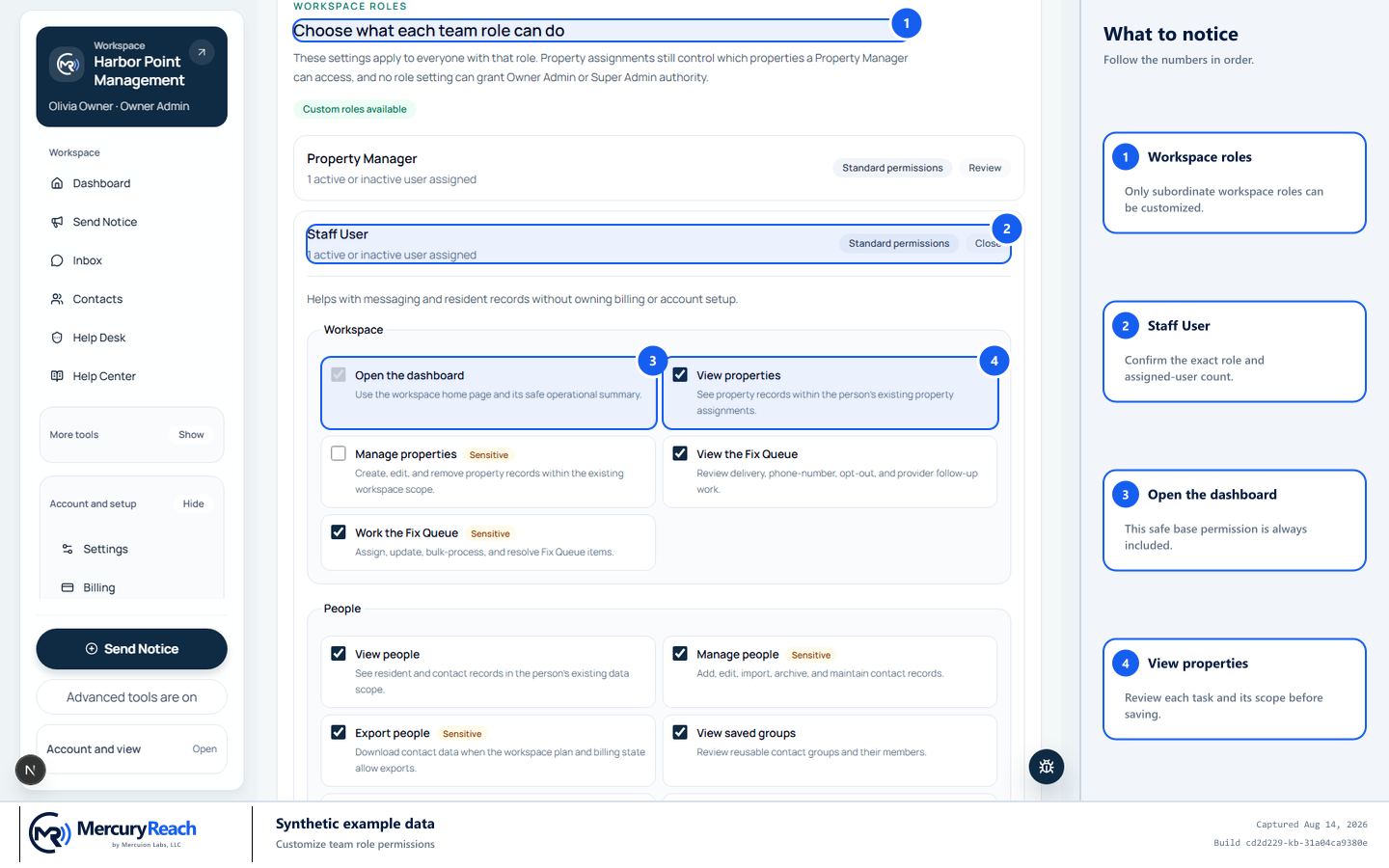
Change one subordinate role at a time and verify the complete resolved permission set before saving.
- 1
Workspace roles: Only subordinate workspace roles can be customized.
- 2
Staff User: Confirm the exact role and assigned-user count.
- 3
Open the dashboard: This safe base permission is always included.
- 4
View properties: Review each task and its scope before saving.
MercuryReach training image · Synthetic example data · Captured 2026-08-20
Check your work
- Owner Admin and Super Admin remain fixed.
- Property Manager access remains limited to assigned properties.
- A currently signed-in user gains or loses the selected task on the next request.
- The audit log records the role, revision, actor, and before-and-after permission sets.
If something does not look right
The role choices are read only.
A direct Super Admin may need to enable custom roles for this workspace, or a support proxy may still be active. Do not work around either guard.
A selected task also checks other boxes.
Those are required viewing permissions. Review the complete resolved list before saving; do not remove a dependency by changing the database.
A user still cannot perform an allowed task.
Check their exact role, active status, property assignment, workspace add-ons, billing state, and the page's own safety requirements. Send the exact page and action to the Help Desk if the cause is unclear.