Review the audit log
Find who changed or sent something, when it happened, and which record was affected.
What you will finish
You locate an activity record and preserve enough context for an operational or support review.
Before you begin
The audit log is a factual activity record, not proof of intent. Do not edit other data only because an entry looks unfamiliar.
Have these ready
- Owner Admin access
- An approximate time, action, entity, or detail
Stop and ask for help if
- The entry suggests unauthorized access, private-data exposure, or a security incident; follow your incident process immediately.
- You are about to change or delete a record to make the activity look different.
Step-by-step instructions
- 1
Open Audit log
Select Audit log and confirm the workspace and displayed time zone.
What you should see: The activity list appears in the expected context.
- 2
Narrow the search
Choose an Action and use Search entity or details. The page does not provide actor or date-range filters, so add one search term at a time.
What you should see: The list contains a manageable set of relevant events.
- 3
Read the event row
Read Timestamp, User, Action, Entity, and Details.
What you should see: You can describe what the system recorded without guessing motive.
- 4
Preserve safe references
Record the exact timestamp, user, action, entity, and minimum necessary detail. Do not paste unnecessary resident details into email or chat.
What you should see: Support or management can locate the same entry safely.
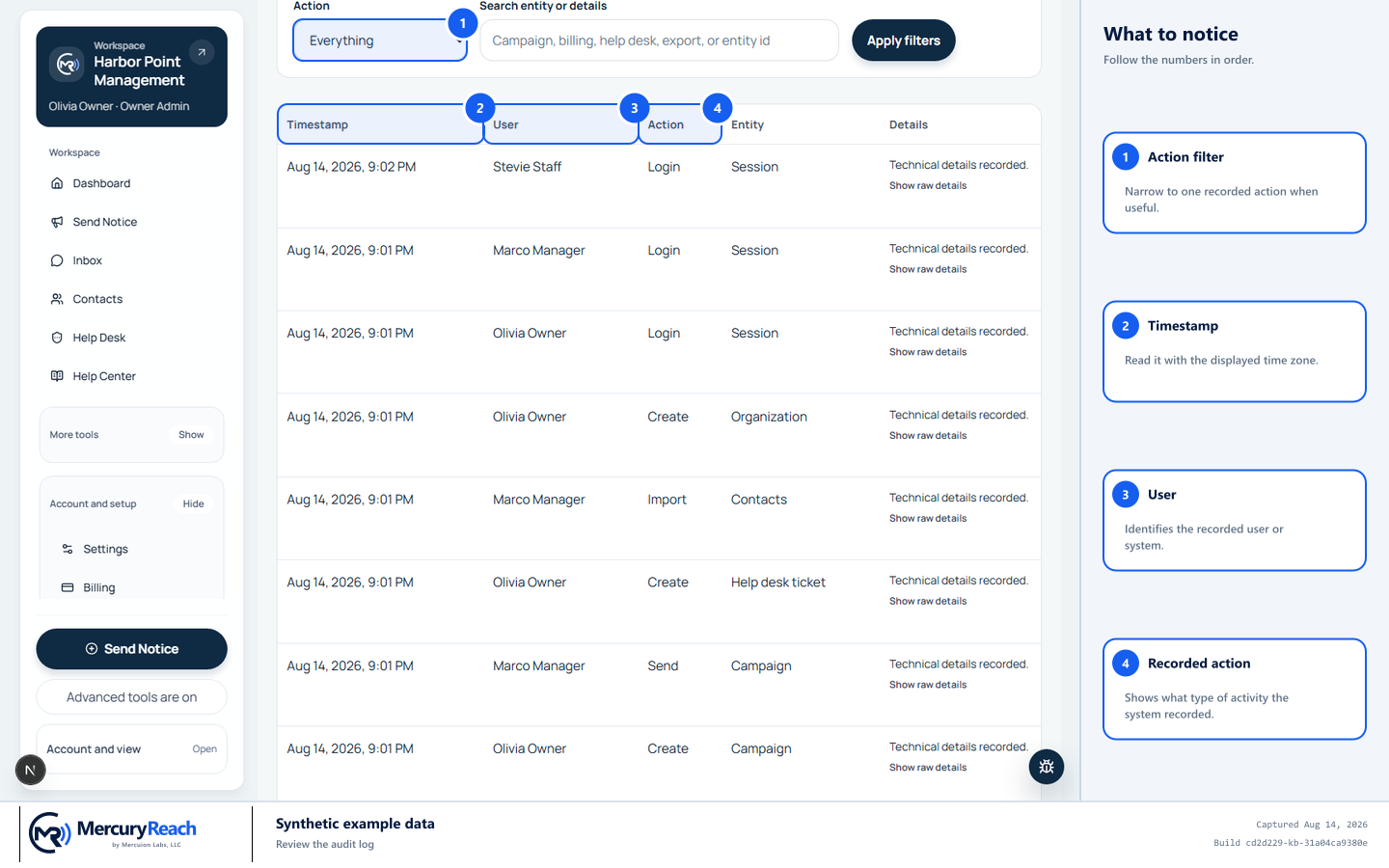
Filter narrowly and preserve identifiers without copying unnecessary resident data.
- 1
Action filter: Narrow to one recorded action when useful.
- 2
Timestamp: Read it with the displayed time zone.
- 3
User: Identifies the recorded user or system.
- 4
Recorded action: Shows what type of activity the system recorded.
MercuryReach training image · Synthetic example data · Captured 2026-08-20
Check your work
- Action and search terms are included in your review notes.
- The exact timestamp and entity can be found again.
- No source record was altered during investigation.
If something does not look right
The expected event is missing.
Clear the search, choose All actions, verify the workspace and time zone, then contact the Help Desk if still absent.
The actor is unfamiliar.
Check the Team members list and any authorized integration. Escalate promptly if access cannot be explained.