Add, find, edit, and archive contacts
Maintain one accurate resident record without creating duplicates or changing consent by mistake.
What you will finish
The contact has one accurate record, the correct property, and a clearly understood status.
Before you begin
Contacts are the people MercuryReach can organize and message. Search before adding, and never guess a person's phone number, email, property, language, or consent.
Have these ready
- Approved contact information
- The correct property
- Edit access to create or change a record; Read Only users may follow the viewing steps
Stop and ask for help if
- A possible duplicate appears.
- The source information conflicts with the existing record.
- You cannot confirm the person's property or permission to receive messages.
Step-by-step instructions
- 1
Search first
Open Contacts and search the person's name, phone number, and email separately.
What you should see: You find the existing record or confirm there is no likely match.
- 2
Open or add
Open the matching contact. If none exists and your role permits editing, select Add one by hand.
What you should see: One contact form is open.
- 3
Enter verified details
Copy the approved name and contact details carefully. Select the correct property and preferred language when known.
What you should see: The summary matches the approved source.
- 4
Review consent separately
Do not mark a channel as opted in merely because a phone number or email exists. Use the organization's approved consent process.
What you should see: Each channel has an accurate consent state.
- 5
Save and recheck
Save once, then read the contact summary and property before leaving.
What you should see: A success message appears and the summary is correct.
- 6
Archive carefully
Archive only under your retention policy after checking active groups, scheduled campaigns, and open conversations.
What you should see: The record leaves active lists without erasing required history.
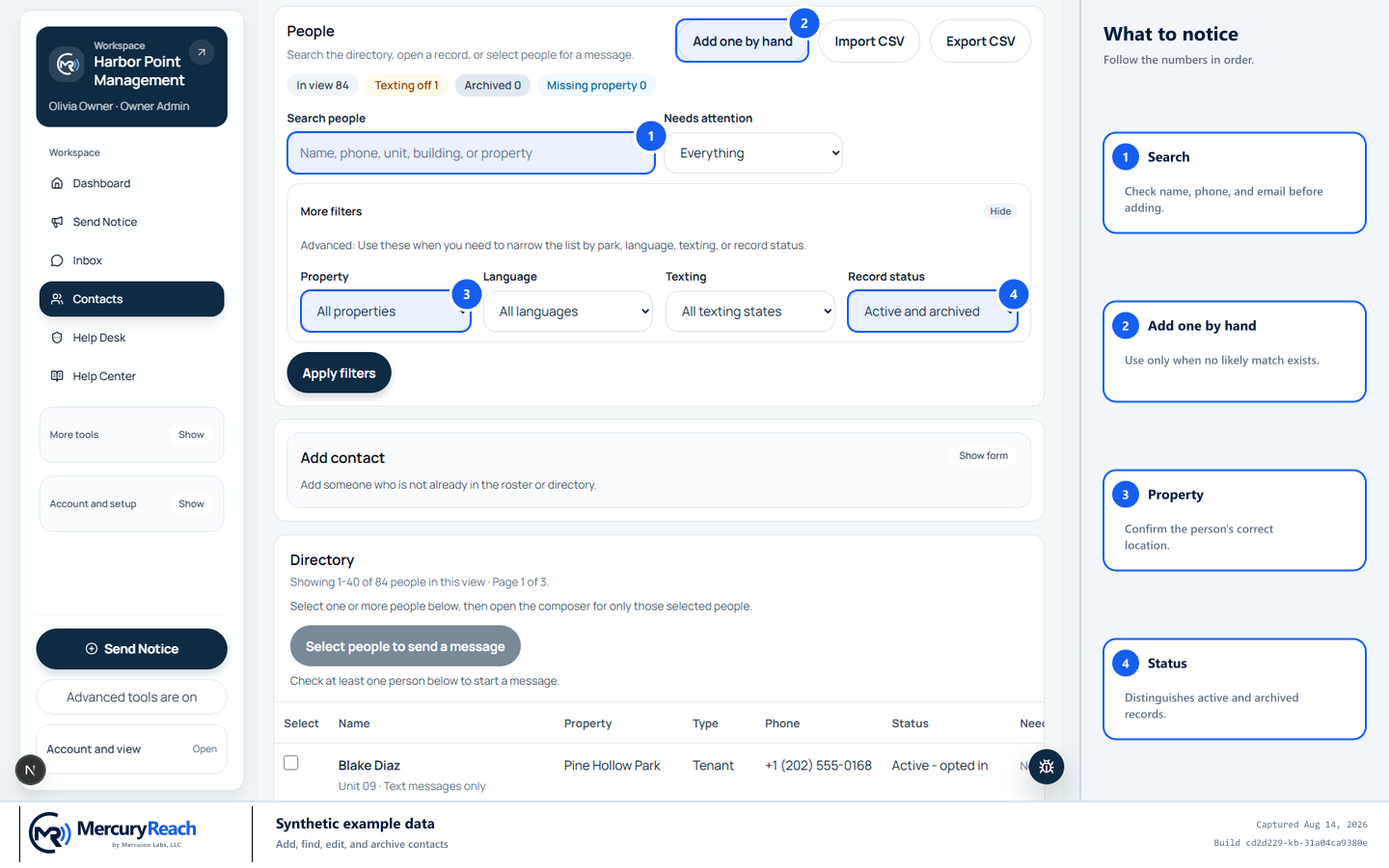
Search first, use verified details, and maintain one record per person.
- 1
Search: Check name, phone, and email before adding.
- 2
Add one by hand: Use only when no likely match exists.
- 3
Property: Confirm the person's correct location.
- 4
Status: Distinguishes active and archived records.
MercuryReach training image · Synthetic example data · Captured 2026-08-20
Check your work
- Searching the phone and email returns only one active contact.
- The property and communication details match the approved source.
- Consent status was not assumed or silently changed.
If something does not look right
You found two records for one person.
Do not edit both or delete either. Send both record links to the Owner/Admin or Help Desk for a controlled review.
Save is blocked.
Correct the field named in the error. If a duplicate warning appears, stop and open the existing record.