Create, edit, and delete properties safely
Add accurate property records, update their identifying details, and delete a property only after reviewing the permanent effect.
What you will finish
The property has clear identifying details and is not duplicated; any deletion is deliberate and approved.
Before you begin
Properties organize contacts and messaging work. Search before creating one so spelling differences do not create duplicate locations. Manager assignments are displayed on the property detail page but are maintained through user management, not the property form.
Have these ready
- Owner Admin or Property Manager access
- Approved property name, address, and type
Stop and ask for help if
- A matching or nearly matching property already exists.
- You are not authorized to manage this property.
- Deletion has not been approved or its effect is unclear.
Step-by-step instructions
- 1
Search first
Open Properties and search the name and street address.
What you should see: You know whether the property already exists.
- 2
Create or open the property
Select Add property only when there is no match; otherwise select Open property.
What you should see: One property form or detail page is open.
- 3
Enter identifying details
Use the approved Property name and complete Address line 1, City, State, Postal code, and Property type.
What you should see: The record clearly distinguishes this location.
- 4
Save the property
Select Save park once and wait for confirmation.
What you should see: The property appears in the Properties list.
- 5
Update a property
Open the property, then open Edit property details. Change only verified information and save once.
What you should see: The property detail page shows the updated values.
- 6
Delete only with approval
Use Delete property only after reading the confirmation. Contacts and past campaigns remain, but the property record and its manager assignments are removed.
What you should see: The approved property is removed and no unrelated property changes.
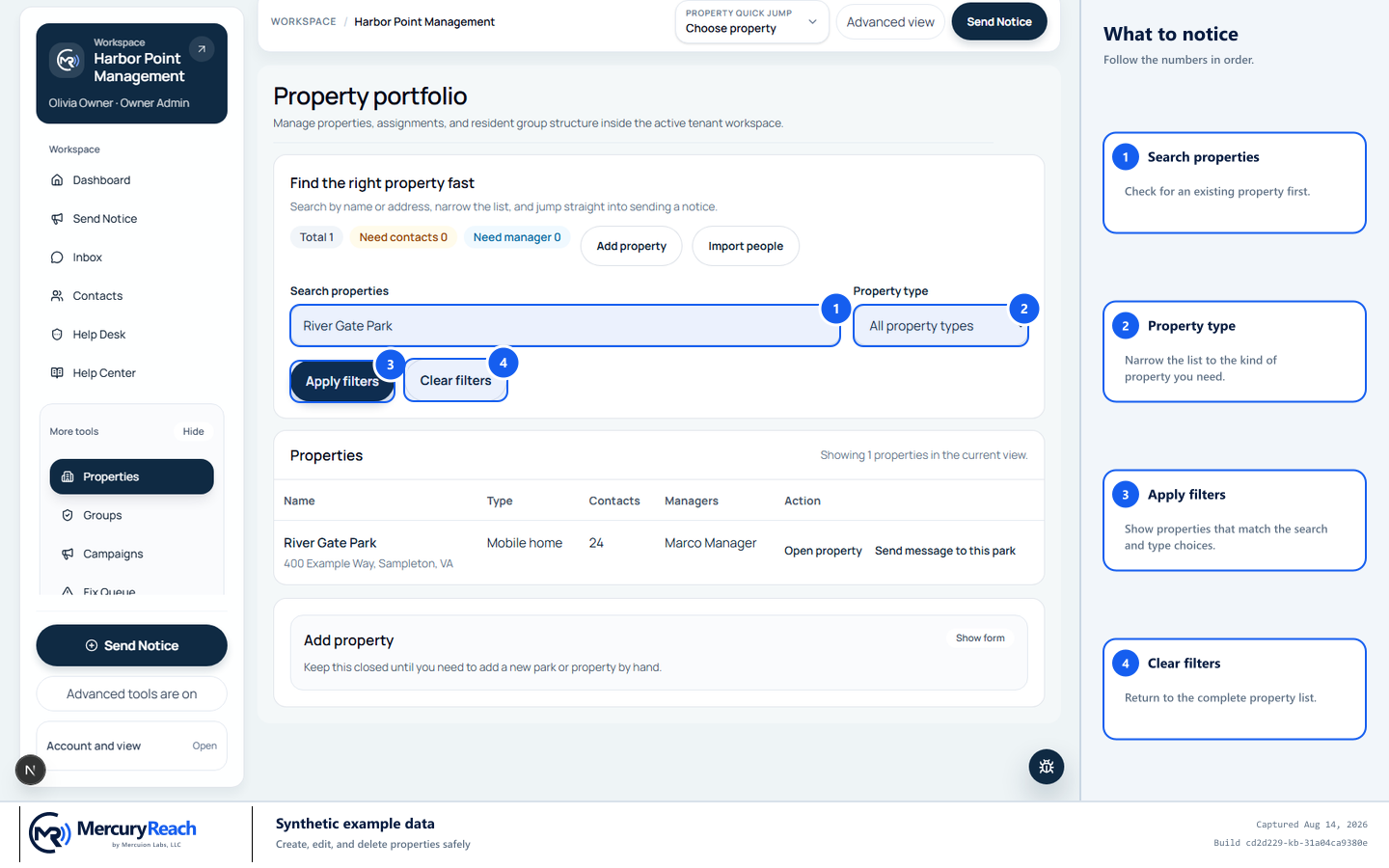
Use one clear filter workflow to find an existing property before adding another record.
- 1
Search properties: Check for an existing property first.
- 2
Property type: Narrow the list to the kind of property you need.
- 3
Apply filters: Show properties that match the search and type choices.
- 4
Clear filters: Return to the complete property list.
MercuryReach training image · Synthetic example data · Captured 2026-08-20
Check your work
- Search returns one record for the property.
- Its name, address, and type are correct.
- Any deletion matched the exact approved property and confirmation.
If something does not look right
You found a duplicate.
Do not delete data or move contacts yourself. Stop and ask the Owner/Admin or Help Desk to review the two record links.
You need to change manager assignments.
An Owner Admin opens Settings, then Users, and updates the Property assignments for the Property Manager.