Export approved contacts or billing records
Download only the data you are authorized to use and protect it after it leaves MercuryReach.
What you will finish
The smallest approved dataset is exported, verified, stored safely, and removed when no longer needed.
Before you begin
An export creates a copy outside MercuryReach. Contacts Export CSV downloads the full contact scope available to your account; the filters on the Contacts page do not narrow that file. There is no export preview or field chooser.
Have these ready
- A documented business purpose
- Authorization for the complete available contact or billing scope
- API/exports access is enabled
- An approved storage destination and retention period
Stop and ask for help if
- You cannot explain who needs the export and for how long.
- The full available scope is broader than the approved purpose.
- Export locked, billing enforcement, or another page notice blocks export.
Step-by-step instructions
- 1
Choose the source
Open Contacts for contact records. An Owner Admin can open Billing for billing history. Confirm the workspace and your authorized property scope first.
What you should see: You are on the approved source page in the correct workspace.
- 2
Understand the scope
Do not rely on Contacts page filters to narrow the CSV. Export CSV includes the complete contact scope available to your account. Billing history export is also a direct download.
What you should see: The full file scope is approved before download.
- 3
Export once
Select Export CSV or Export billing history CSV once and wait for the download. Do not bypass Export locked, billing, or permission blocks.
What you should see: One CSV file is downloaded.
- 4
Verify and move securely
Open only in an approved tool, sample-check scope, then move it from Downloads to the approved protected location.
What you should see: The file contains only expected records and is not left in a general folder.
- 5
Share and remove under policy
Use only approved sharing methods and delete temporary copies when the approved retention period ends.
What you should see: No uncontrolled copy remains.
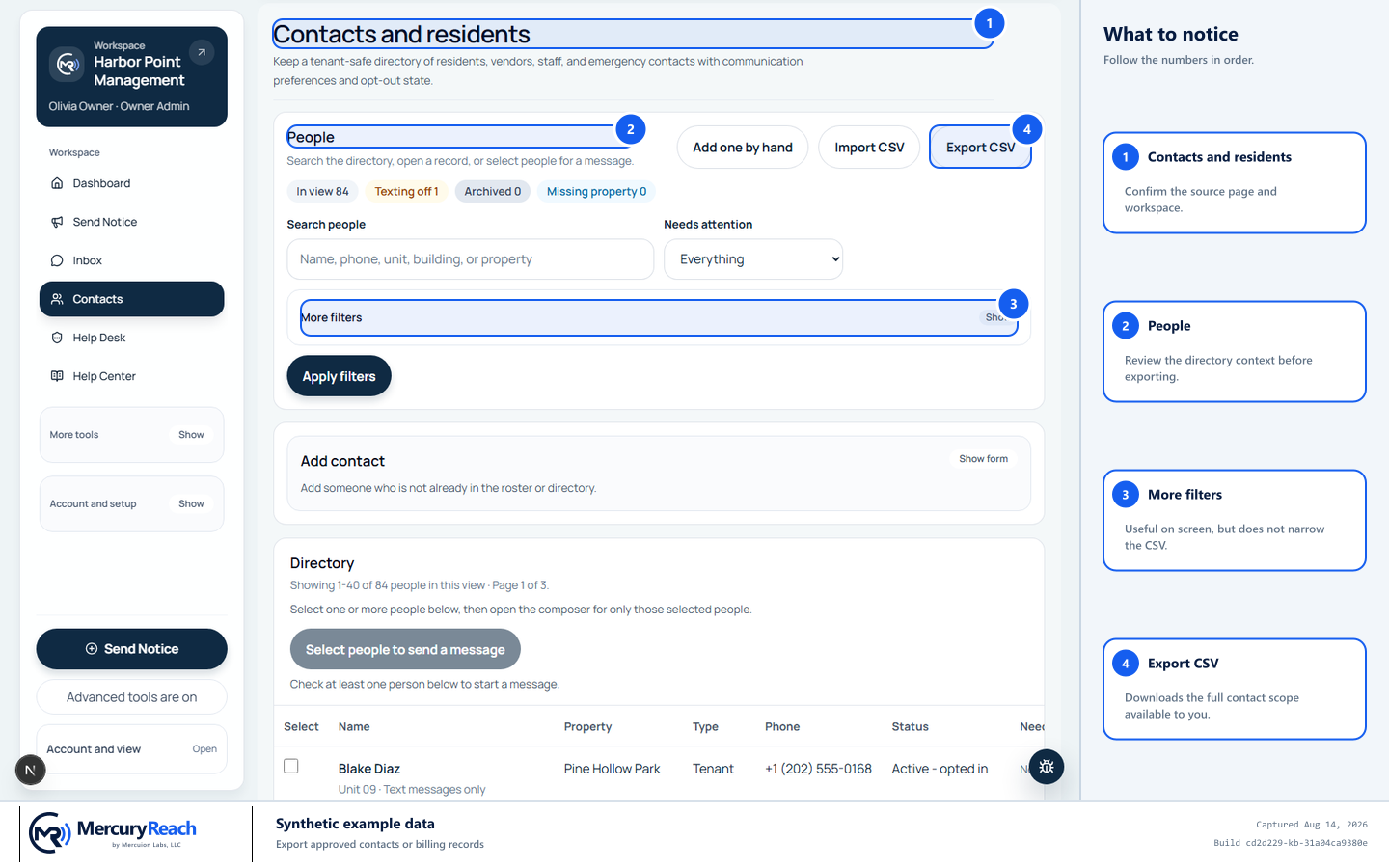
Export CSV is a direct download of your full available contact scope; page filters do not narrow it.
- 1
Contacts and residents: Confirm the source page and workspace.
- 2
People: Review the directory context before exporting.
- 3
More filters: Useful on screen, but does not narrow the CSV.
- 4
Export CSV: Downloads the full contact scope available to you.
MercuryReach training image · Synthetic example data · Captured 2026-08-20
Check your work
- The downloaded file's complete scope matches approval.
- No property or record outside your authorized scope is present.
- The file is stored, shared, and scheduled for removal under policy.
If something does not look right
Export is unavailable.
Check role, property scope, and billing notice. Ask the Owner/Admin rather than copying records manually.
The file includes unexpected records.
Close it, do not share it, protect or remove it under policy, and report the scope problem immediately.