Review billing, plan access, and add-ons
Review subscription status, usage, and optional features, then use only the billing actions currently available to your account.
What you will finish
You understand the current plan and use the supported payment, billing-contact, or support path when a change is needed.
Before you begin
Billing changes can affect sending, replies, exports, and optional features such as Shared Inbox, Voice, Translation, White Label, or API Access.
Have these ready
- Owner/Admin access
- Authority to view or change billing
- An approved payment or purchasing process
Stop and ask for help if
- You are not authorized to accept charges or terms.
- The page shows past due, recovery, suspended, or an unfamiliar subscription state.
- A change would remove a feature your team currently uses.
Step-by-step instructions
- 1
Open Billing
Go to Settings, then Billing.
What you should see: The current plan, status, usage, and available actions appear.
- 2
Review status and usage
Read the subscription status and usage period before selecting any action.
What you should see: You know whether the account is active and near any limit.
- 3
Review paid options
Read Paid options to see which add-ons are currently on. Owner Admin accounts cannot turn add-ons on or off from this page; contact support for an approved change.
What you should see: You understand current feature access without changing it accidentally.
- 4
Use an available billing action
Select Start subscription in Stripe or Open billing portal only when that action is shown, or use Save billing contacts to update approved contacts. Never send payment details to support in a screenshot.
What you should see: The supported action completes or returns you safely.
- 5
Verify in MercuryReach
Return to Billing, refresh once, and check the displayed status and feature access.
What you should see: The page reflects the expected approved state.
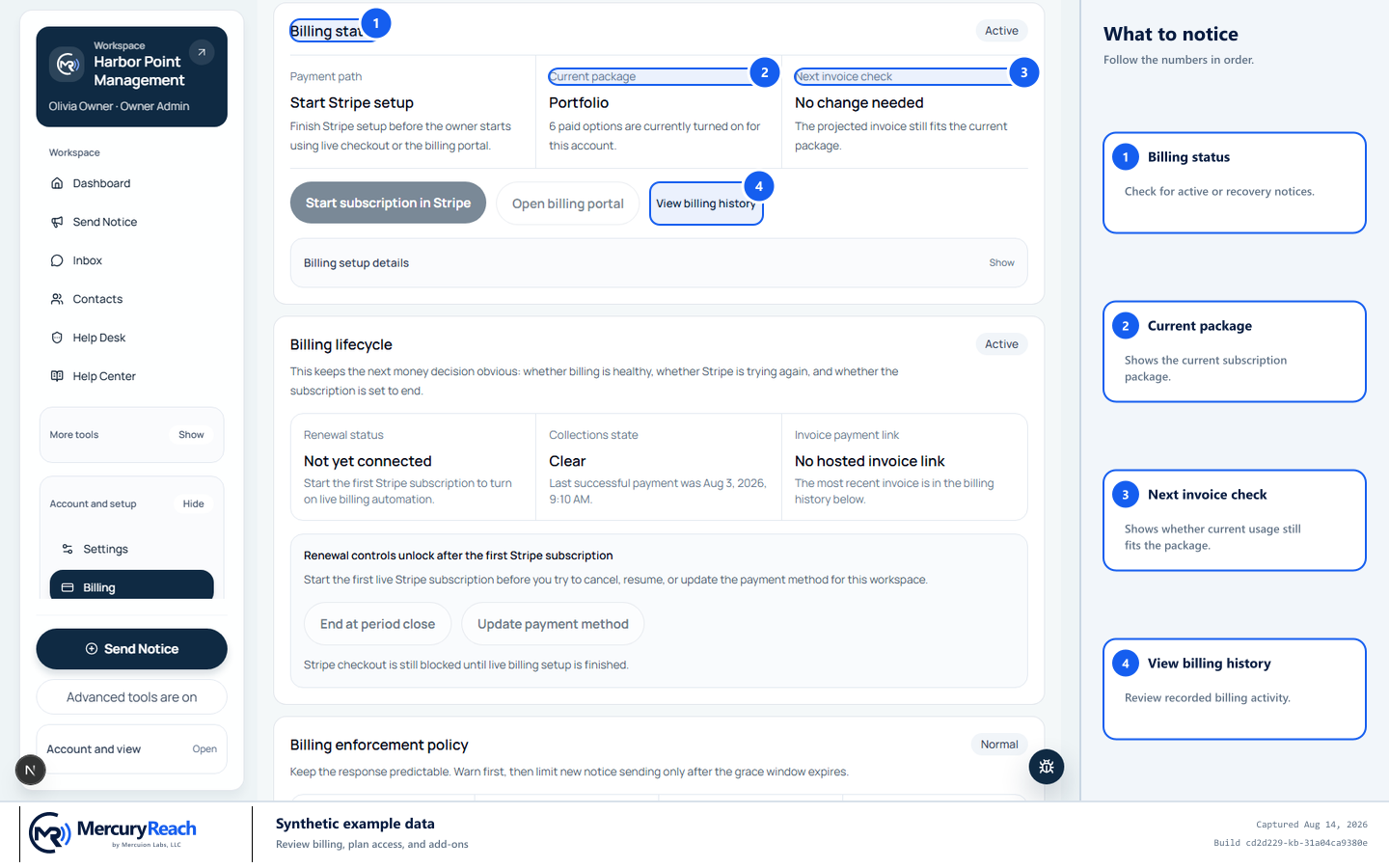
Review the current billing context and projected invoice before using billing history or an approved payment path.
- 1
Billing status: Check for active or recovery notices.
- 2
Current package: Shows the current subscription package.
- 3
Next invoice check: Shows whether current usage still fits the package.
- 4
View billing history: Review recorded billing activity.
MercuryReach training image · Synthetic example data · Captured 2026-08-20
Check your work
- Billing status and current plan are understood.
- Paid options match the features your team expects.
- Any payment change was completed through Stripe or the approved support path.
If something does not look right
Sending, replies, or exports are blocked.
Read the billing notice, do not repeatedly retry, and have the authorized Owner/Admin resolve the named status or contact the Help Desk.
Payment succeeded but the status did not change.
Wait for the confirmation, refresh once, then open a Help Desk ticket with the time and non-sensitive receipt reference—never full payment details.