Create and revoke an MCP access token
Connect a trusted MCP client with a see-once personal token, then revoke the connection when it is no longer approved.
What you will finish
A trusted client uses a time-limited personal token with your current MercuryReach access, or the token is revoked and can no longer connect.
Before you begin
MCP, or Model Context Protocol, is a connection method that lets an approved external tool request MercuryReach information and actions. An MCP token acts as your personal secret for that connection.
Every request uses your current role, workspace, property assignments, and API Access status. A token never grants more access than your account currently has, and the full token appears only once after creation.
Connection endpoint is the MercuryReach web address the client uses. The token supplies your personal account scope when the client connects.
Have these ready
- A directly signed-in personal MercuryReach account
- The API Access add-on is active for the workspace
- A trusted MCP client approved by your organization
- An approved secret or environment setting in that client
- An approved connection purpose and expiry of 7, 30, or 90 days
Stop and ask for help if
- Token management says a support proxy session is active; return to the native account first.
- The API Access add-on is inactive, the client is unfamiliar, or the connection owner and purpose are not approved.
- You do not have an approved secret or environment setting; never put the token in ordinary settings, source code, a ticket, chat, email, notes, logs, or a screenshot.
- A token is exposed, copied to the wrong client, or produces unexpected access; revoke it before continuing and follow your security-reporting process.
- The client reports an invalid, expired, or revoked token; stop repeated requests and check the endpoint and token status before creating a replacement.
Step-by-step instructions
- 1
Open account actions
Open Account and view at the bottom of the left menu.
What you should see: The account actions appear.
- 2
Open security
Select Password and security.
What you should see: The Password and security page appears.
- 3
Find connections
Find MCP and API connections.
What you should see: The token form, Connection endpoint, and existing token list appear.
- 4
Name the connection
In Connection name, enter a name that identifies the approved client and purpose.
What you should see: The connection can be distinguished from other tokens.
- 5
Choose an expiry
In Expires after, select 7 days, 30 days, or 90 days according to approval.
What you should see: The shortest approved duration is selected.
- 6
Create the token
Select Create token once.
What you should see: Copy this token now and New MCP access token appear.
- 7
Copy the token
Select Copy token once.
What you should see: The control says Copied.
- 8
Store the secret
Paste the token directly into the approved secret or environment setting in the trusted MCP client.
What you should see: The client stores the secret without displaying it in ordinary configuration or logs.
- 9
Set the endpoint
Enter the displayed Connection endpoint in the client's approved endpoint setting.
What you should see: The client points to the MercuryReach MCP address, where the token supplies account scope.
- 10
Verify limited access
Run one approved read-only connection check from the client.
What you should see: The response stays within your current role, workspace, property assignments, and add-on access.
- 11
Revoke an unused token
For the exact Active connection that is no longer approved, select Revoke once.
What you should see: Its status changes to Revoked and the client can no longer use it.
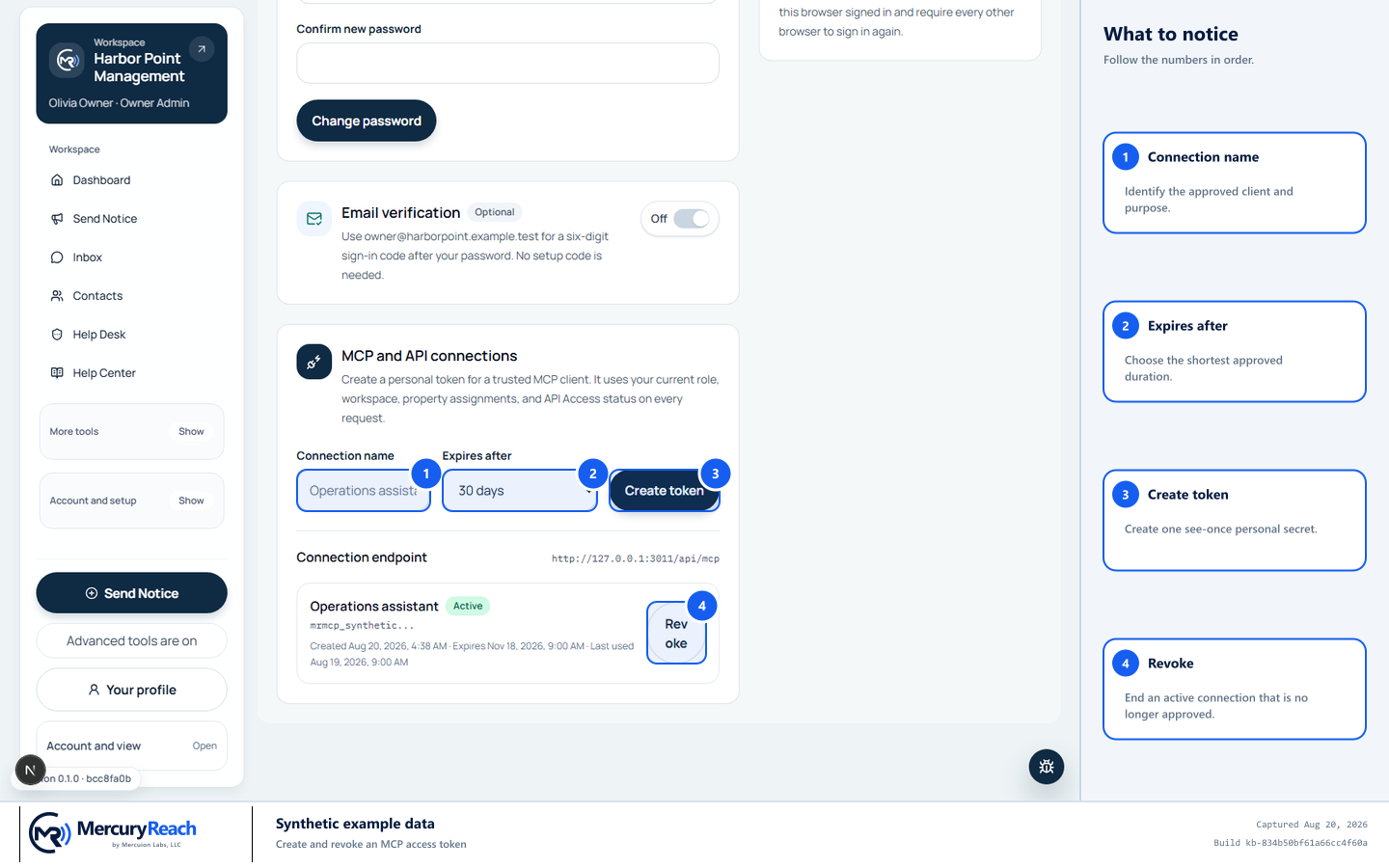
Use a named, time-limited token for one trusted client and revoke it when approval ends.
- 1
Connection name: Identify the approved client and purpose.
- 2
Expires after: Choose the shortest approved duration.
- 3
Create token: Create one see-once personal secret.
- 4
Revoke: End an active connection that is no longer approved.
MercuryReach training image · Synthetic example data · Captured 2026-08-20
Check your work
- The intended connection appears once with the expected name, expiry, and Active, Expired, or Revoked status.
- The full token is absent after the page reloads.
- The client can access only an approved action within the signed-in user's current permissions.
- A revoked, expired, or invalid token cannot complete a request.
If something does not look right
Create token is unavailable.
Read the panel notice. End any support proxy session and ask an authorized Owner Admin to confirm the API Access add-on; do not bypass either gate.
The full token was not stored or is no longer visible.
MercuryReach does not show it again. Revoke the unused token, create a new approved token, and store the replacement directly in the client's secret setting.
The client says the token is invalid, expired, or revoked.
Stop repeated requests. Confirm the exact Connection endpoint and token status. Create a replacement only when the connection remains approved; never edit, guess, or reconstruct a token.
The token may have been exposed.
Select Revoke immediately, stop the client, preserve only non-secret timing and connection details, and follow your organization's security-reporting process.