Set up company details
Review the organization name, contact details, time zone, and messaging defaults used by your workspace.
What you will finish
Your workspace uses approved company information and the correct local time zone.
Before you begin
Company settings affect how coworkers recognize the workspace and how scheduled work is interpreted. Use official information supplied by your organization.
Have these ready
- Owner/Admin access
- Approved organization name and support contact
- The primary time zone used for resident communication
Stop and ask for help if
- You are unsure which legal or public-facing company name to use.
- Changing the time zone would affect already scheduled campaigns.
Step-by-step instructions
- 1
Open Branding
Select Branding under Settings in the left menu.
What you should see: Branding settings appears.
- 2
Check identity details
If White-label branding is enabled, enter the approved Company name and Sender name. Otherwise, these controls are locked.
What you should see: The available identity fields match the approved organization.
- 3
Check resident support
Enter the monitored Support phone residents should use.
What you should see: The correct support number appears.
- 4
Choose the timezone and quiet hours
Select the Timezone and review Quiet hours start and Quiet hours end against your approved operating policy.
What you should see: Scheduling and quiet-hour settings match your organization.
- 5
Save once
Select the save button shown for your page once: Save branding, Save company setup, or Save operational settings.
What you should see: Returning to Branding settings shows the saved values.
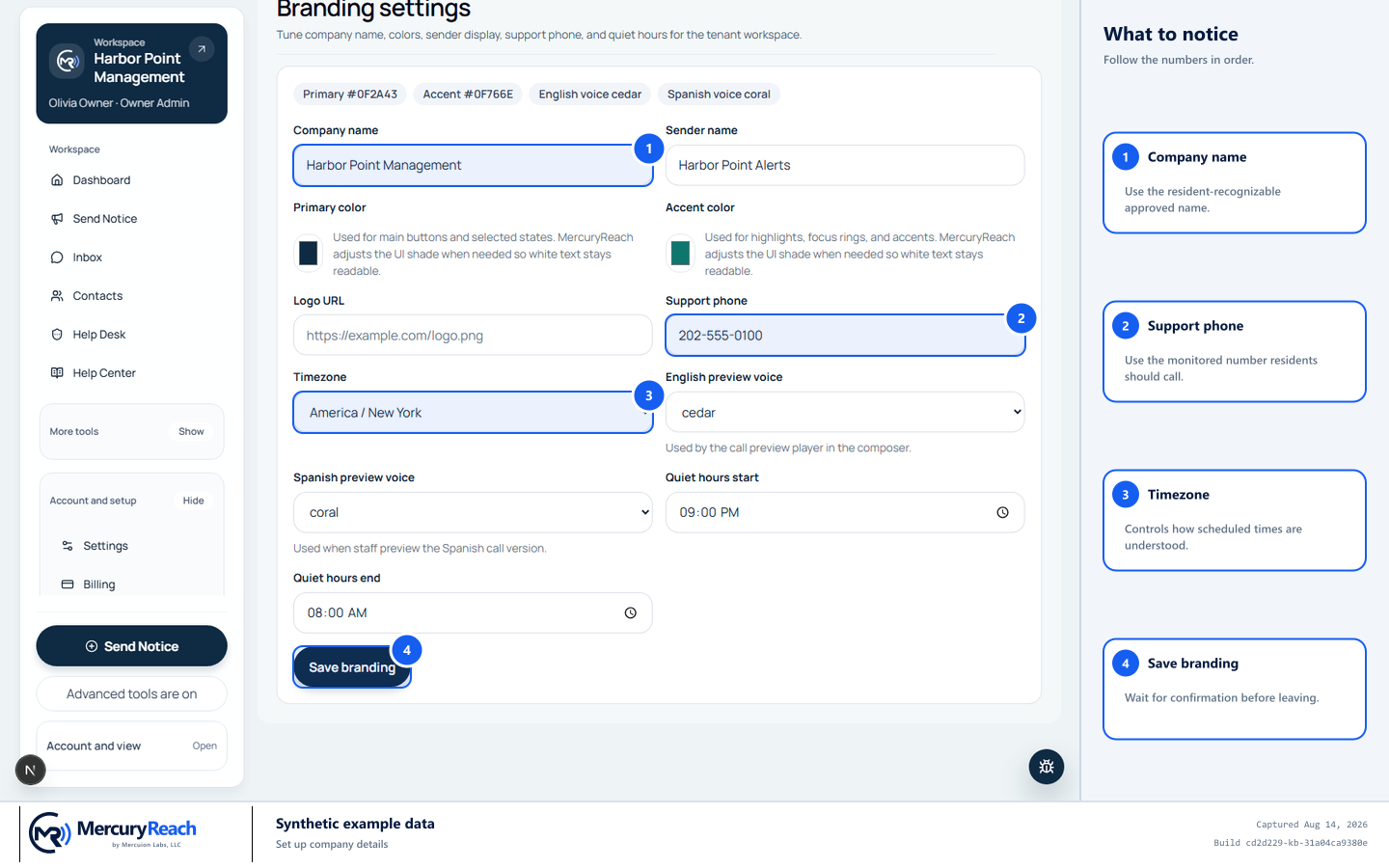
Use approved company details and verify the time zone before saving.
- 1
Company name: Use the resident-recognizable approved name.
- 2
Support phone: Use the monitored number residents should call.
- 3
Timezone: Controls how scheduled times are understood.
- 4
Save branding: Wait for confirmation before leaving.
MercuryReach training image · Synthetic example data · Captured 2026-08-20
Check your work
- The Settings page shows the approved organization name.
- A newly opened schedule form shows the correct local time zone.
- Returning to Settings shows the saved values.
If something does not look right
Save is unavailable.
Complete every required field and correct any field with an error message.
Scheduled times look wrong after a time-zone change.
Stop new scheduling and review every pending campaign with its owner before editing or canceling it.