Set up your logo and message branding
Add an approved logo URL, colors, and sender details, then check the workspace display before using them.
What you will finish
Approved branding is saved and remains readable in the preview.
Before you begin
Branding helps residents recognize legitimate communication. Use only files and wording your organization has approved.
Have these ready
- Owner/Admin access
- The White-label Branding add-on for company name, sender name, colors, or logo changes
- A secure public URL for the approved logo image
- Approved sender wording and colors
Stop and ask for help if
- The logo came from an email or website you cannot verify.
- The preview makes required legal, opt-out, or support text difficult to read.
Step-by-step instructions
- 1
Open Branding
Go to Settings, then Branding.
What you should see: The branding controls and preview appear.
- 2
Enter the approved logo URL
In Logo URL, paste the secure web address supplied for the approved logo. MercuryReach uses the URL; this page does not upload a file from your computer.
What you should see: The full logo URL appears in the field.
- 3
Set approved colors and sender name
Choose the Primary color and Accent color and enter the approved Sender name. Keep strong contrast between text and its background.
What you should see: The branding summary uses the reviewed identity.
- 4
Check operational details
Confirm Support phone, Timezone, quiet hours, and the English and Spanish preview voices before saving.
What you should see: Resident support and scheduling details are correct.
- 5
Save the branding
Select the save button shown for your page once: Save branding, Save company setup, or Save operational settings.
What you should see: Returning to Branding settings shows the saved values.
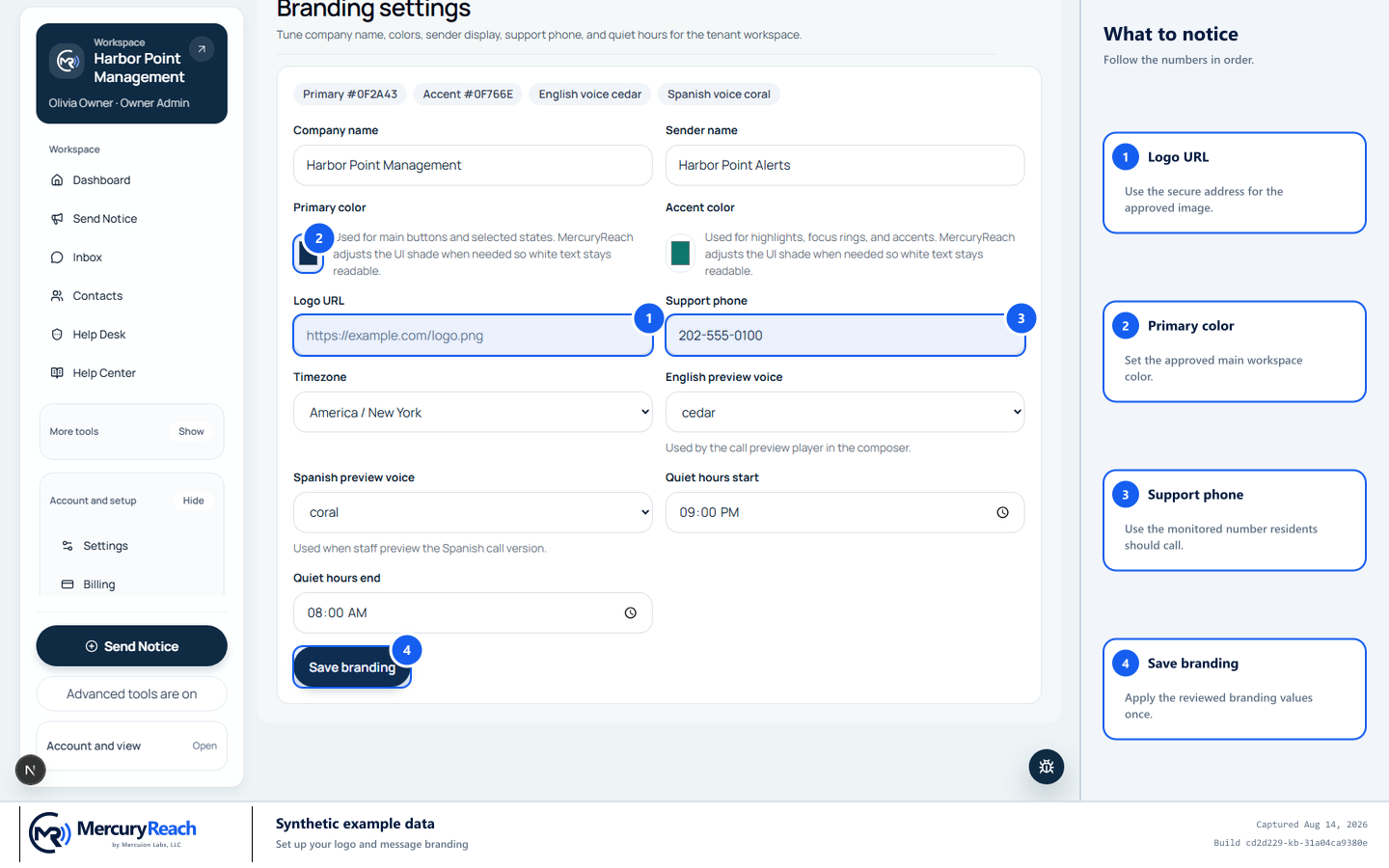
Use approved values and check the add-on notice before saving workspace branding.
- 1
Logo URL: Use the secure address for the approved image.
- 2
Primary color: Set the approved main workspace color.
- 3
Support phone: Use the monitored number residents should call.
- 4
Save branding: Apply the reviewed branding values once.
MercuryReach training image · Synthetic example data · Captured 2026-08-20
Check your work
- The current logo is not stretched, blurry, or cropped.
- Text remains readable on desktop and phone previews.
- An internal test identifies the correct organization.
If something does not look right
The logo does not appear.
Confirm the Logo URL begins with https:// and opens the approved image directly without requiring a sign-in. Do not use a private drive link or an unapproved image host.
The branding controls are locked.
Open plan and billing and confirm whether White-label Branding is enabled. Support phone, timezone, and quiet hours can still be updated without that add-on.