Create and manage message templates
Save approved text and call wording for reuse, and use supported placeholders exactly as shown.
What you will finish
A clearly named saved message contains approved text and call wording with supported placeholders copied exactly.
Before you begin
Templates reduce retyping, but they do not remove the need to review every campaign. Draft with synthetic examples and use only approved wording.
Have these ready
- Template-management access
- Approved message wording
- Required support, opt-out, and policy language
Stop and ask for help if
- The wording is not approved.
- A personalization field is unknown, broken, or could reveal the wrong person's data.
- Required opt-out or support wording is missing.
Step-by-step instructions
- 1
Search saved messages
Open Templates and use Find the right saved message before creating another one.
What you should see: You find an existing approved saved message or confirm a new one is needed.
- 2
Create and name
Select Create saved message. Enter a specific Title and Category.
What you should see: Coworkers can distinguish the saved message from similar ones.
- 3
Use supported placeholders
Open Add names or park details automatically and copy a supported placeholder exactly when personalization is approved. There is no field-insertion menu.
What you should see: Only documented placeholder text is used.
- 4
Enter approved content
Enter the required Text message (English) and call script, plus approved Spanish versions when used.
What you should see: The form contains the approved text and voice wording.
- 5
Save and review in a campaign
Select Save message once in Simple view, or Save template in Advanced view. Reopen the saved message, then use Use for new message and check the campaign's Message preview before sending.
What you should see: The campaign preview matches the approved content.
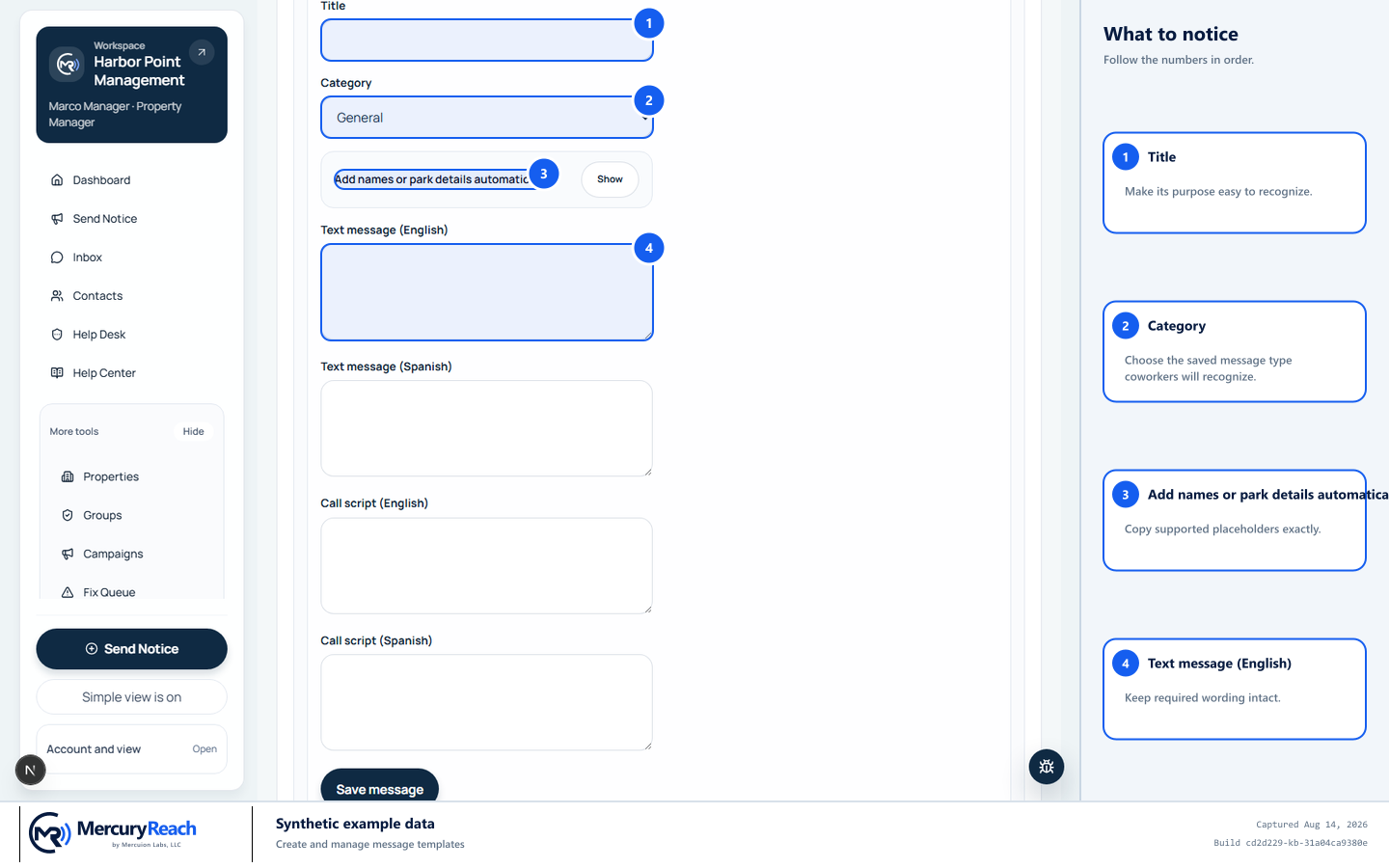
Use approved wording and copy only supported placeholders, then review the final campaign preview.
- 1
Title: Make its purpose clear to recognize.
- 2
Category: Choose the saved message type coworkers will recognize.
- 3
Add names or park details automatically: Copy supported placeholders exactly.
- 4
Text message (English): Keep required wording intact.
MercuryReach training image · Synthetic example data · Captured 2026-08-20
Check your work
- The Title states the saved message's purpose.
- Every placeholder is one of the supported forms and is copied exactly.
- Required support and opt-out wording remains present.
- The campaign Message preview is correct before sending.
If something does not look right
A placeholder appears instead of a name or value.
Do not send. Compare it character for character with Add names or park details automatically, correct it, and review the campaign preview again.
The message is split or too long.
Shorten nonessential text without removing required wording, then review the channel preview and estimated segments.