Create a resident communication campaign
Choose a clear purpose, approved channels, correct audience, and reviewed message without sending yet.
What you will finish
A complete notice is ready for final recipient and message review without being submitted yet.
Before you begin
A campaign sends one communication to one or more contacts. Entering information in the composer does not send it; the final review and submit action happen at the end.
Have these ready
- Permission to send
- An approved communication purpose and message
- A reviewed group or recipient list
- Required channel consent
Stop and ask for help if
- The request does not name an owner, audience, purpose, or timing.
- The selected audience crosses an unapproved property.
- The preview includes opted-out or unexpected contacts.
Step-by-step instructions
- 1
Start a campaign
Open Campaigns and select New campaign.
What you should see: The campaign composer appears.
- 2
Choose people
Under Who should get this?, select the approved audience: everyone in the workspace, one property, a saved list, a contact type, or hand-picked people. Read Audience preview in Simple view, or Recipient preview in Advanced view.
What you should see: Only the intended audience appears.
- 3
Choose how it sends
Under How should it send? in Simple view, or How to send it in Advanced view, select only an approved available option: Text only, Call only, or Text and call. Call options require Voice Broadcast.
What you should see: The delivery method matches the communication plan.
- 4
Write the message
Enter a clear Message name and choose an approved saved message or type approved wording. Review the English and Spanish content that will be used.
What you should see: The message is complete and understandable.
- 5
Choose timing
Select Send now, Send later, or Repeat on a schedule. For future work, confirm the displayed date, time, and repeat rule.
What you should see: The timing summary matches the approved request.
- 6
Stop at review
Open Review and send, read the delivery contract and message preview, then stop. Do not check the final box or submit until you complete Review and send a campaign safely.
What you should see: The final review is visible and no notice has been submitted.
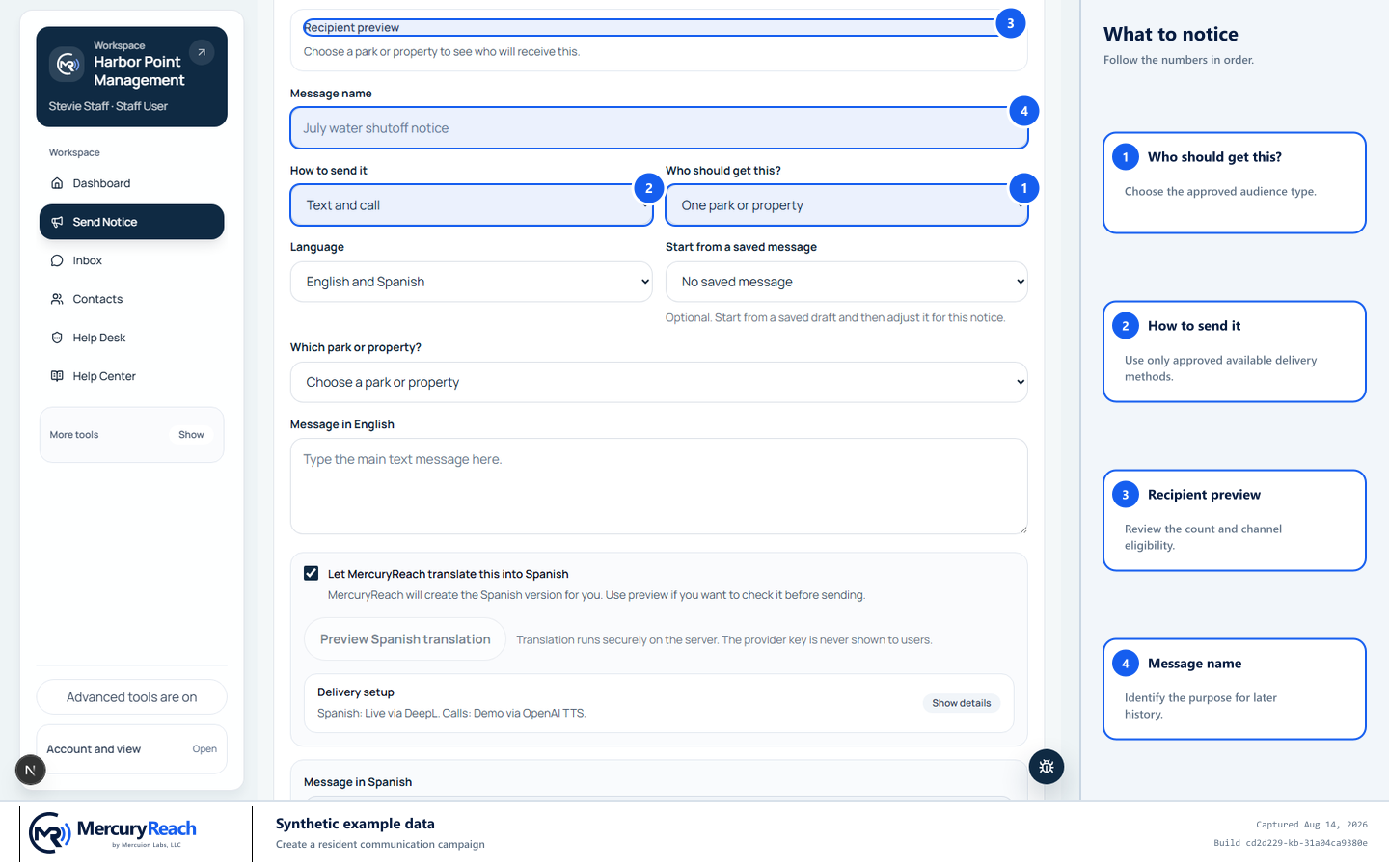
Build from an approved audience and message, then stop at final review.
- 1
Who should get this?: Choose the approved audience type.
- 2
How to send it: Use only approved available delivery methods.
- 3
Recipient preview: Review the count and channel eligibility.
- 4
Message name: Identify the purpose for later history.
MercuryReach training image · Synthetic example data · Captured 2026-08-20
On a phone
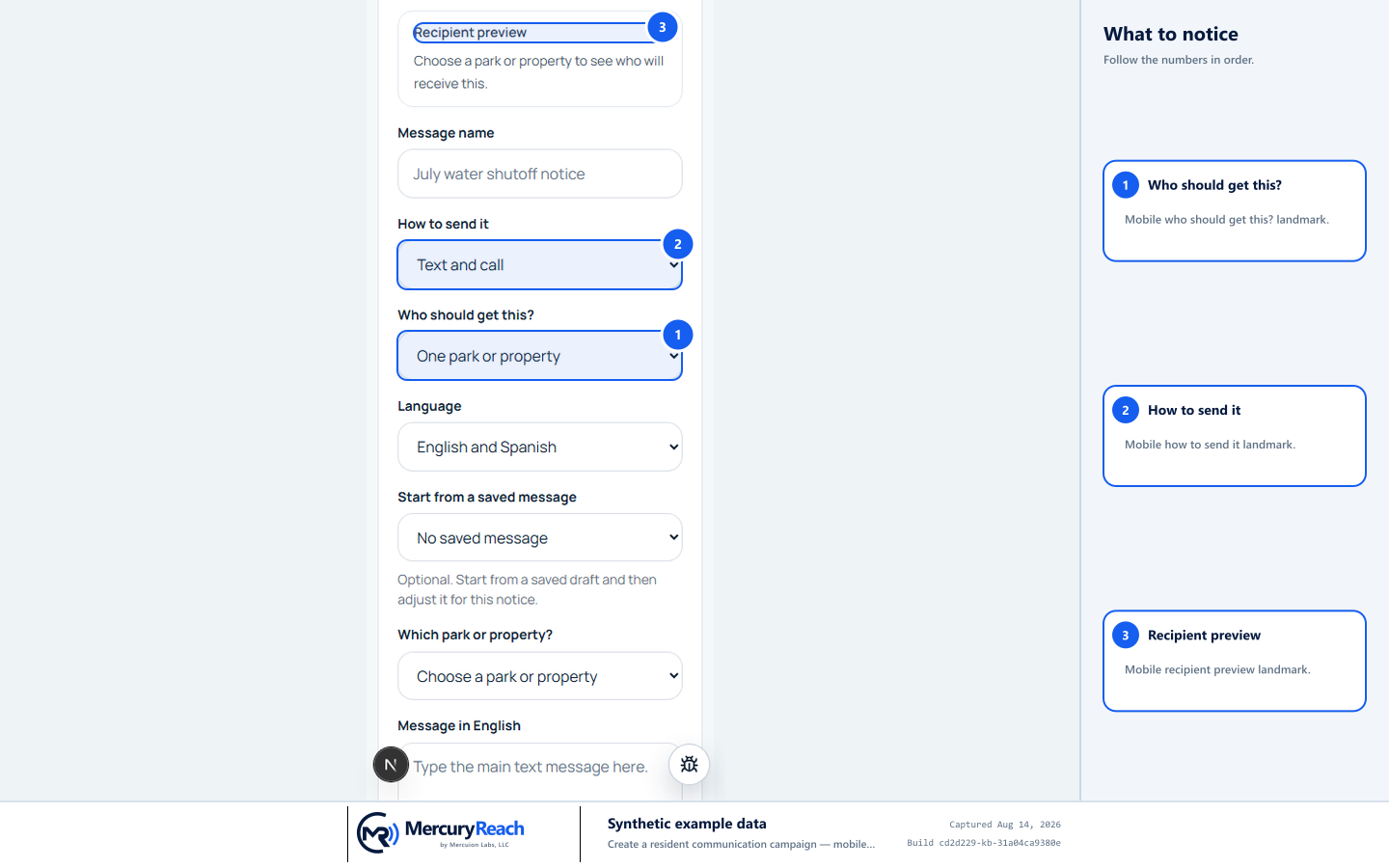
On a phone, the same sending choices appear in a single vertical flow.
- 1Who should get this?
- 2How to send it
- 3Recipient preview
MercuryReach training image · Synthetic example data · Mobile view
Check your work
- The Message name identifies the purpose.
- Recipient count and preview match the approved audience.
- Delivery method and message preview match the request.
- The final review box is still unchecked and the submit action was not used.
If something does not look right
The recipient count is zero.
Check group membership, property scope, and channel consent. Do not change consent merely to make contacts eligible.
A channel is unavailable.
It may require configuration or an add-on. Save the draft and ask the Owner/Admin; do not substitute an unapproved channel.