Review and send a campaign safely
Perform the final audience, consent, content, timing, and approval checks before the irreversible send action.
What you will finish
The approved campaign is sent once to the intended eligible audience, or safely stopped when a check fails.
Before you begin
Sending may be difficult or impossible to undo. Slow down at the review screen, especially for urgent messages.
Have these ready
- A complete draft campaign
- Required internal approval
- Authority to send to this audience
- A known response owner for replies or delivery problems
Stop and ask for help if
- Any count, property, person, channel, date, link, sender, translation, or approval is unexpected.
- The page shows a billing, provider, readiness, or consent warning.
- Another person may be sending the same communication.
Step-by-step instructions
- 1
Confirm campaign identity
Read the Message name and the displayed delivery mode. Confirm this is the approved notice for the intended workspace.
What you should see: There is no confusion with another notice.
- 2
Review the delivery contract
Under Delivery contract, read Owner, Audience, Delivery, and Timing. Check the visible eligibility counts and every warning.
What you should see: The audience, channels, and timing match the approved request.
- 3
Review every message version
Under Message preview, check English and Spanish text and call wording that will be used, including names, dates, links, support, and opt-out instructions.
What you should see: Each enabled message version is accurate.
- 4
Confirm usage, timing, and approval
Read the monthly usage check and timing. Complete your organization's approval process before using the page's final confirmation.
What you should see: No usage, timing, or approval warning remains.
- 5
Use the final confirmation
In the advanced view, check I checked the audience, the wording, and when this notice should send. In the simple view, check I checked the delivery contract and the message wording. Only then select Send notice now once.
What you should see: The campaign detail page appears with its recorded status.
- 6
Monitor the result
Remain on the result page until status appears, then check delivery results and the Fix queue.
What you should see: The campaign progresses without a duplicate send.
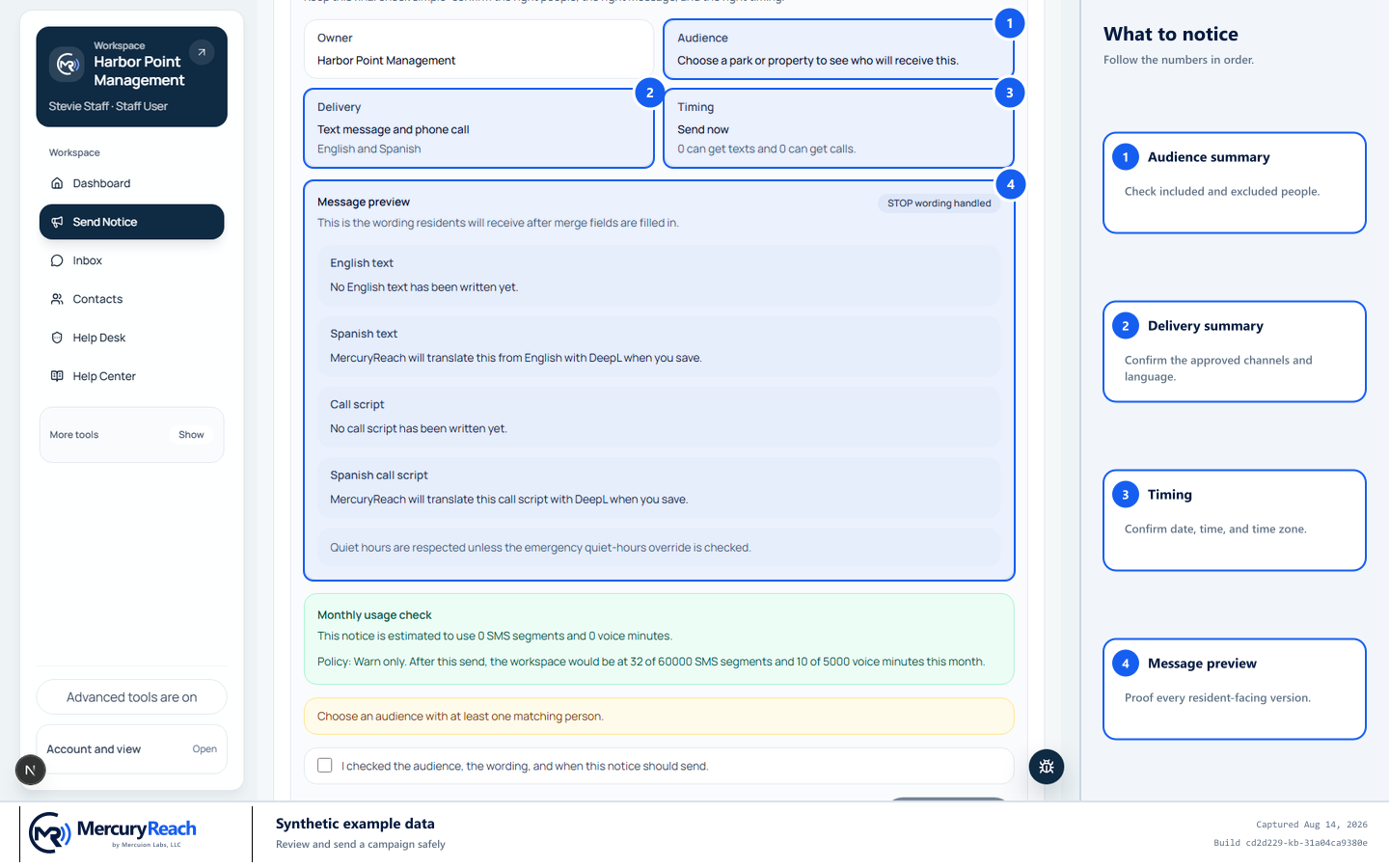
Treat sending as irreversible: verify every final-review summary before using the confirmation and submit controls.
- 1
Audience summary: Check included and excluded people.
- 2
Delivery summary: Confirm the approved channels and language.
- 3
Timing: Confirm date, time, and time zone.
- 4
Message preview: Proof every resident-facing version.
MercuryReach training image · Synthetic example data · Captured 2026-08-20
Check your work
- Campaign history contains one matching campaign.
- Status is Queued, Sending, Sent, Partial, or Failed after submission; it is not duplicated.
- Recipient and exclusion totals match the final review.
- No unexplained delivery or fix-queue warning remains.
If something does not look right
You selected Send notice now and nothing appeared to happen.
Do not select it again. Open Campaign history in another tab and search the Message name before retrying or contacting support.
You discover an error after sending.
Do not create a correction until the message owner evaluates who received what. Preserve the campaign link and escalate immediately.