Schedule, pause, resume, cancel, or repeat a campaign
Set future timing in the correct time zone and review pending work before changing it.
What you will finish
The campaign has one intended schedule, and any change is verified before its execution time.
Before you begin
Scheduled and recurring work can run when nobody is watching. Confirm the time zone, ownership, recipient rules, and how your team will stop a recurring rule when it is no longer needed.
Have these ready
- A reviewed campaign
- Approved date, local time, and recurrence
- A named person responsible for monitoring and stopping recurring work
Stop and ask for help if
- The displayed time zone is wrong or unclear.
- A duplicate schedule exists.
- Nobody is responsible for reviewing and stopping a recurring rule.
- Execution is too close to change safely.
Step-by-step instructions
- 1
Open scheduling
In the campaign composer, choose Send later or Repeat on a schedule, or open Scheduled from the main menu to manage existing work.
What you should see: The send time or current scheduled work appears.
- 2
Set local timing
Choose the approved date and time and read the displayed time zone aloud.
What you should see: The human-readable schedule matches the request.
- 3
Configure recurrence
For repeating communication, choose Repeat rule and record who will review the rule and cancel it when it should stop.
What you should see: The rule states how often it repeats and has a responsible coworker.
- 4
Review and activate
Recheck the notice, recipients, timing, manager, and conflicts, then select Schedule notice or Save recurring notice once.
What you should see: The item appears once in Scheduled.
- 5
Change safely
Open Scheduled and review the exact item. Use Put on hold, Turn back on, or Cancel. Under More actions, use Duplicate when a separate notice is intended.
What you should see: The item shows the intended Scheduled, Paused, or Cancelled state.
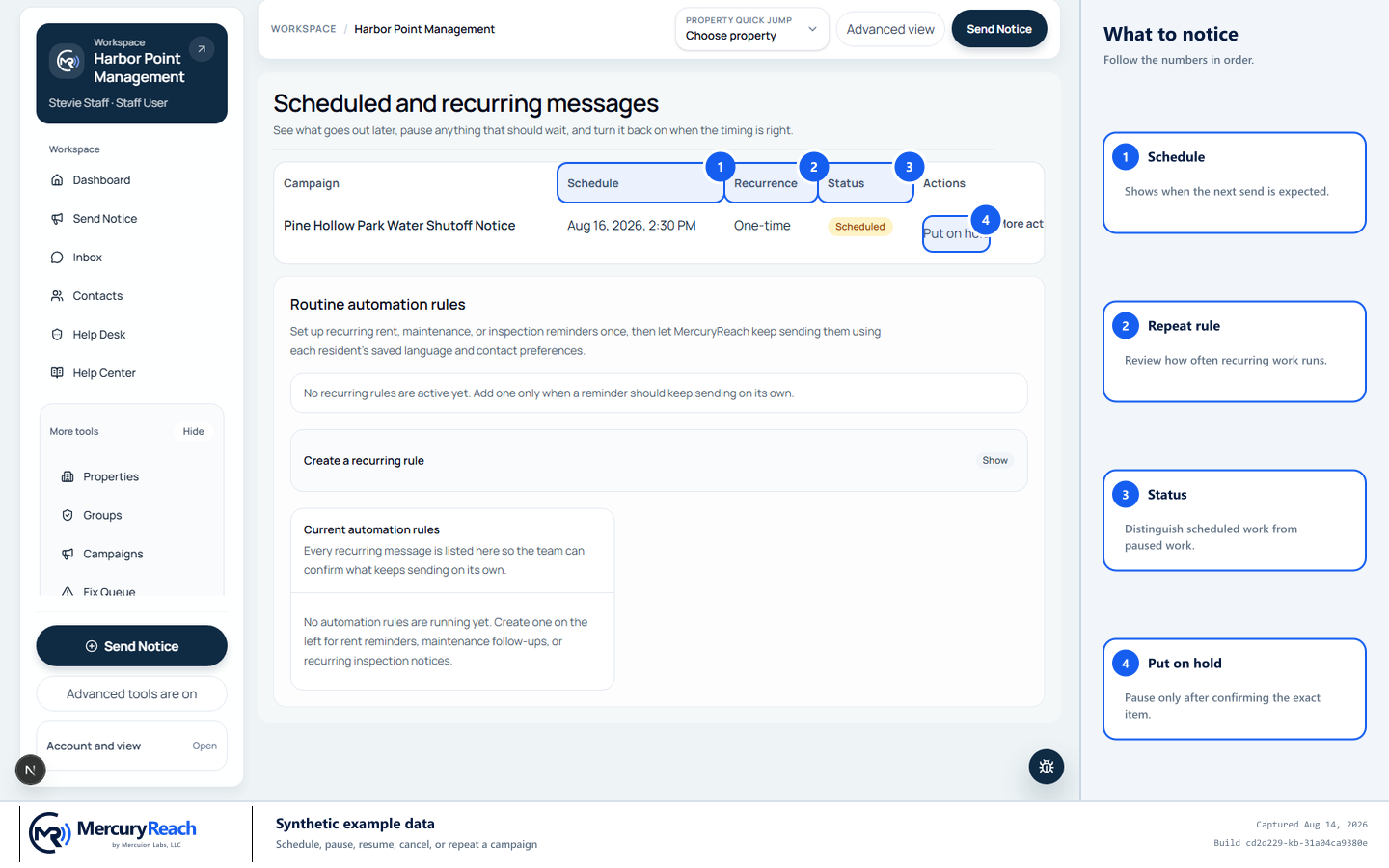
Verify one scheduled item, its local time, repeat rule, and current status.
- 1
Schedule: Shows when the next send is expected.
- 2
Repeat rule: Review how often recurring work runs.
- 3
Status: Distinguish scheduled work from paused work.
- 4
Put on hold: Pause only after confirming the exact item.
MercuryReach training image · Synthetic example data · Captured 2026-08-20
Check your work
- Scheduled shows one matching item.
- Its next run and time zone are correct.
- A recurring item shows the expected repeat rule and responsible manager.
- Paused work will not send until turned back on, and canceled work is no longer active.
If something does not look right
The time appears one hour off.
Do not activate. Check the workspace time zone and daylight-saving date with the Owner/Admin.
Put on hold or Cancel is unavailable.
The run may have started or your role may not be allowed to manage it. Escalate with the campaign link rather than creating a second notice.