Use translation and voice messaging
Preview optional translated and spoken versions before including them in a campaign.
What you will finish
Every enabled language and voice version accurately communicates the approved meaning.
Before you begin
Translation and Voice may require add-ons. Automated output is a draft to review, especially for names, dates, addresses, emergency wording, and legal or safety instructions.
Have these ready
- The required add-on is active
- Approved source message
- A qualified reviewer for important translated content
- Correct language preferences for recipients
Stop and ask for help if
- No qualified person can confirm high-impact translated wording.
- The voice preview mispronounces a name, number, address, or critical instruction.
- A recipient's language preference is unknown and the campaign depends on it.
Step-by-step instructions
- 1
Start with approved source text
Finalize the plain source-language message before creating translations or voice.
What you should see: There is one approved meaning to compare against.
- 2
Generate the optional version
Choose the language or voice option and use Preview. Do not treat generation as approval.
What you should see: A translated text or playable voice preview appears.
- 3
Review critical details
Compare names, dates, times, numbers, addresses, links, calls to action, support, and opt-out wording with the source.
What you should see: No important meaning is added, lost, or changed.
- 4
Correct and approve
Make permitted corrections or return the text to the approved reviewer. Leave only reviewed wording in the composer and do not submit until the final campaign review.
What you should see: The campaign preview shows an approved version for each enabled option.
- 5
Listen before sending
Use the English and Spanish voice preview controls for every enabled call version. Follow your organization's separate approved internal-test process when one is required.
What you should see: The content is understandable at normal speed before resident use.
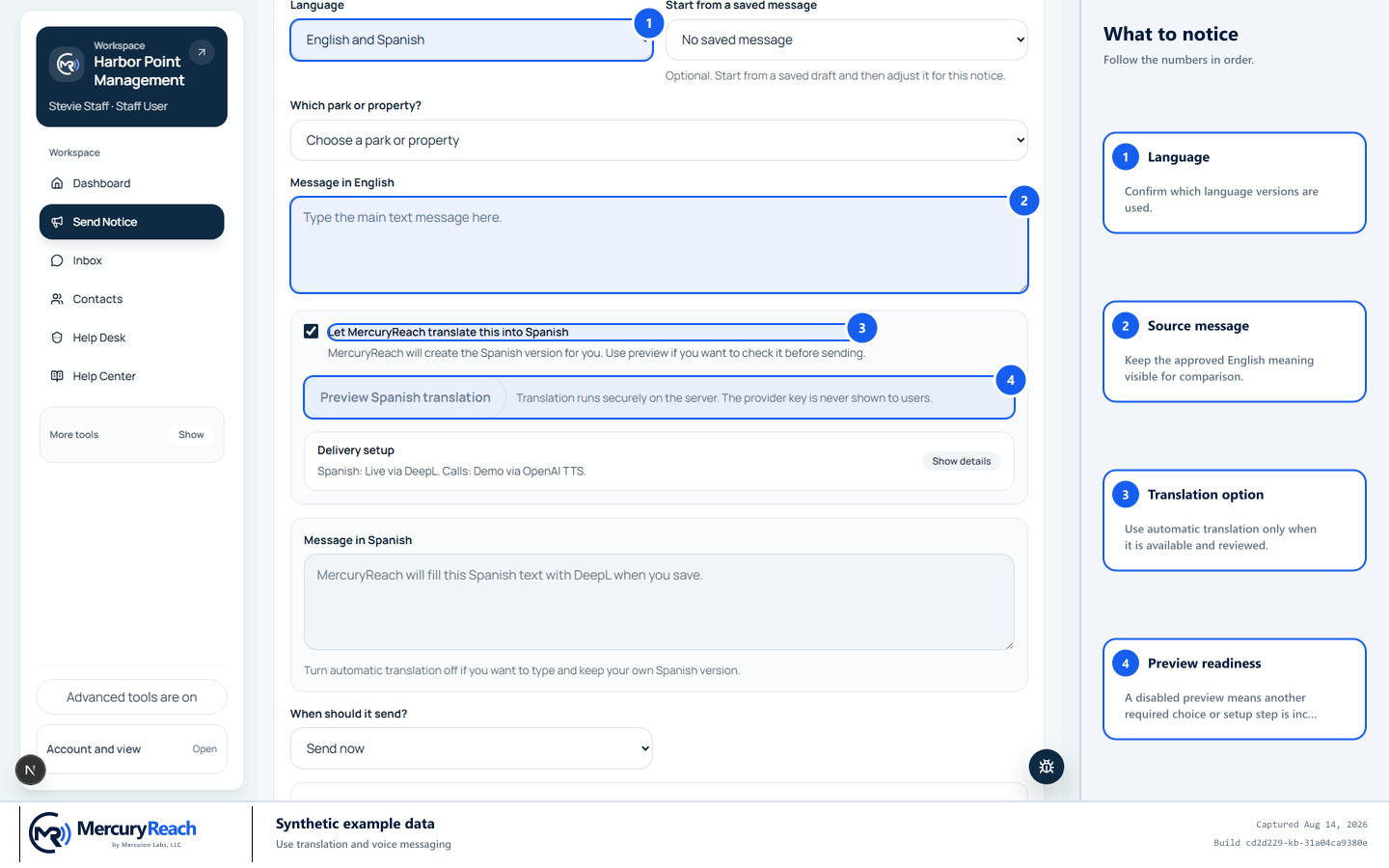
Choose the language first, keep the approved source visible, and use translation only when setup and the review process are ready.
- 1
Language: Confirm which language versions are used.
- 2
Source message: Keep the approved English meaning visible for comparison.
- 3
Translation option: Use automatic translation only when it is available and reviewed.
- 4
Preview readiness: A disabled preview means another required choice or setup step is incomplete.
MercuryReach training image · Synthetic example data · Captured 2026-08-20
Check your work
- Each language preserves dates, numbers, action, and required instructions.
- Voice playback is audible and pronounces critical details correctly.
- Recipient-language selection produces the expected preview.
If something does not look right
The translation changes the meaning.
Do not send. Correct it through the approved review process or use approved source wording and an authorized alternative.
Voice preview does not load.
Save the source draft, check add-on status, and contact the Owner/Admin or Help Desk. Do not activate voice without hearing it.