Complete the getting-started checklist
Follow the first-run lane and the full checklist from sender details through the first carefully reviewed notice.
What you will finish
Your workspace has the sender, property, residents, delivery setup, language review, and first-notice evidence required for daily use.
Before you begin
The Getting Started page turns setup into small, ordered jobs. Finish each job and check the result before moving on.
Have these ready
- An active workspace account
- Approved organization and property information
- An approved resident roster and consent process
- Owner Admin authority for launch review
Stop and ask for help if
- Do not import or message real residents until your organization has approved the data and consent process.
- Do not switch from Simulation to live delivery only to complete a checklist item.
- Billing, provider, consent, or launch readiness is not confirmed.
Step-by-step instructions
- 1
Open Getting Started
Select Getting Started and read Progress, First-run lane, and the current step under First notice path.
What you should see: The current setup step and completion count appear.
- 2
Complete the first-run lane
Follow 1. Add the first property, 2. Import contacts, and 3. Practice with a safe notice in order. Keep the first audience small and approved.
What you should see: A property, at least one eligible resident, and one reviewed notice exist.
- 3
Open the full setup checklist
Open Show the full setup checklist and work through Confirm sender and callback details, Add the first property, Import residents, Turn on live delivery, Preview English and Spanish wording, and Send the first notice.
What you should see: Each completed requirement says Done and the next incomplete requirement is clear.
- 4
Use the current-step action
Select Open current step, complete that page, then return to Getting Started. Do not mark progress by changing unrelated settings or sending to a broad audience.
What you should see: Progress advances only when the named product requirement is actually met.
- 5
Review what success looks like
Confirm the sender and callback, one real property and roster, reviewed English and Spanish wording, and a small safe first audience.
What you should see: The workspace matches the on-page success criteria.
- 6
Review launch evidence
When Internal rehearsal sign-off is available, an Owner Admin selects View launch packet and reviews all blockers before approving live use.
What you should see: The launch packet clearly shows what is ready and what still blocks live use.
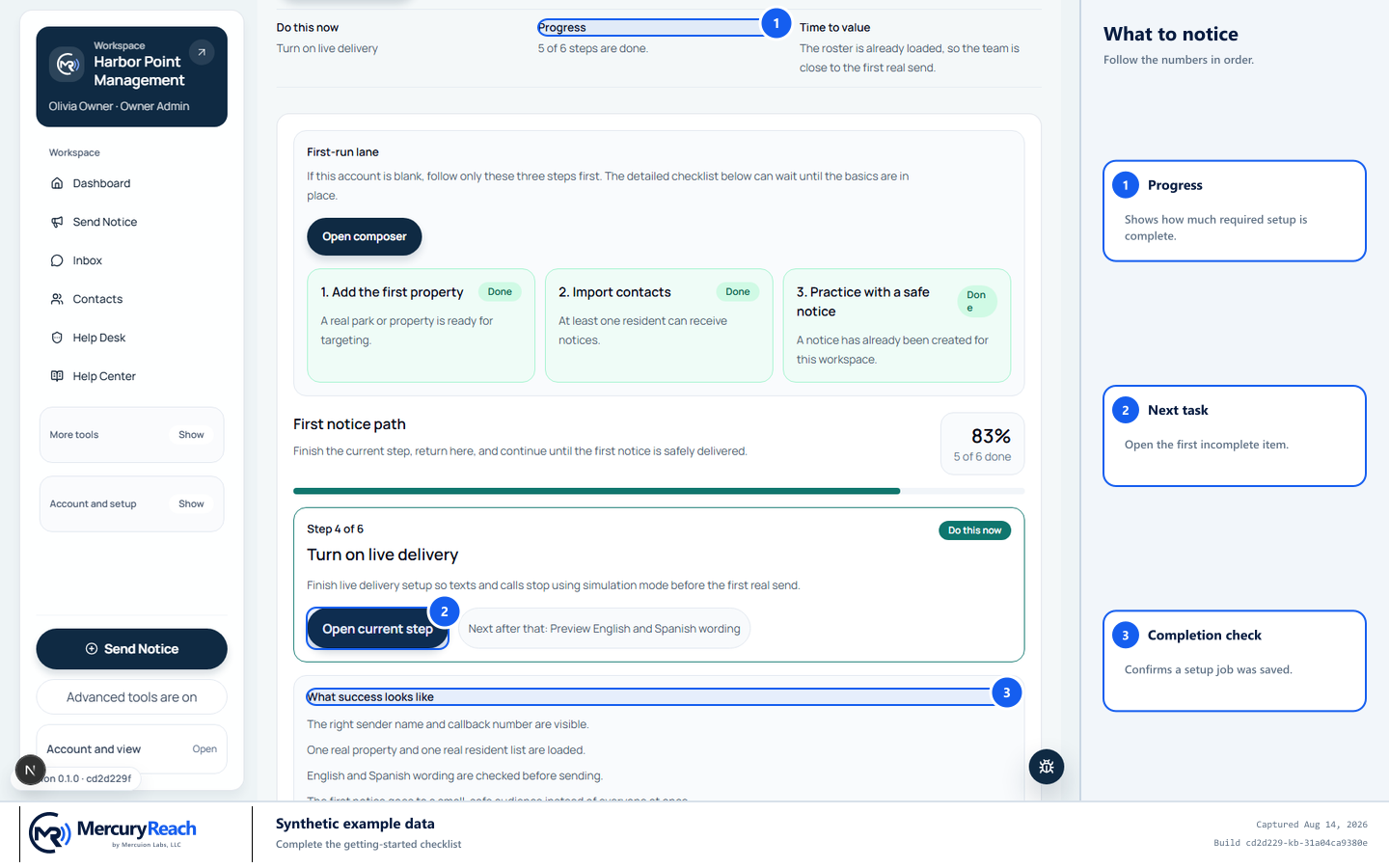
Complete setup in order and test with an approved internal recipient before messaging residents.
- 1
Progress: Shows how much required setup is complete.
- 2
Next task: Open the first incomplete item.
- 3
Completion check: Confirms a setup job was saved.
MercuryReach training image · Synthetic example data · Captured 2026-08-20
Check your work
- The six-step First notice path shows the expected completion state.
- The first audience was small, approved, and reviewed before submission.
- The launch packet has no unresolved billing, provider, consent, or readiness blocker before live approval.
If something does not look right
A checklist item does not complete.
Open that item, save all required fields, then return to Getting Started and refresh once.
You are unsure whether the workspace is ready.
Stop before sending and ask your Owner/Admin to review properties, consent, branding, and the recipient list.